> ## Documentation Index
> Fetch the complete documentation index at: https://docs.gateway.connexease.com/llms.txt
> Use this file to discover all available pages before exploring further.
# Developer
> Manage API keys and configure webhooks for your Gateway app.
## Overview
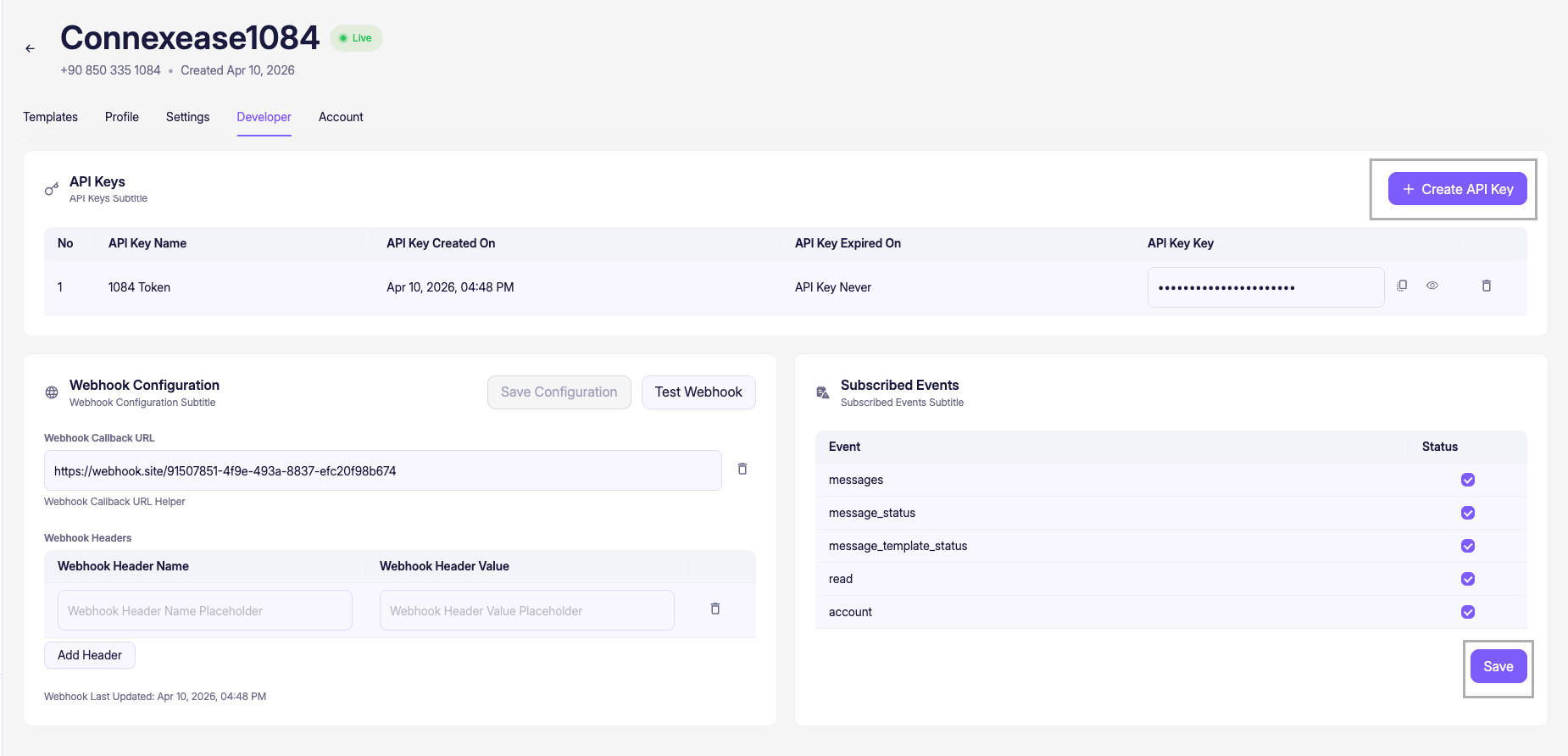
The **Developer** tab is where you manage all technical integration settings for your app: API keys for authenticating requests and webhook configuration for receiving real-time events. Access it from the app's top navigation: **Developer**.
 ***
## API Keys
The **API Keys** section lists all keys associated with this app.
| Column | Description |
| ---------------------- | ---------------------------------------------------------------------------------- |
| **No** | Row number. |
| **API Key Name** | A label you assign to the key for identification (e.g. `1084 Token`). |
| **API Key Created On** | Timestamp when the key was generated. |
| **API Key Expired On** | Expiry date, or `API Key Never` if the key has no expiration. |
| **API Key Key** | The actual key value, masked by default. Use the icons to copy, reveal, or delete. |
### Creating an API Key
Click **+ Create API Key** in the top-right of the section. Give the key a descriptive name and optionally set an expiry date.
Keys are prefixed with `pk_` for production or `sk_` for sandbox/staging.
An API key is shown in full only once, immediately after creation. Copy it and store it securely — for example, as an environment variable. Never commit API keys to source control or expose them in client-side code.
### Key Actions
| Icon | Action |
| ----- | --------------------------------------------------- |
| Copy | Copies the masked/full key value to your clipboard. |
| Eye | Reveals the key value in the UI. |
| Trash | Permanently deletes the key. This cannot be undone. |
***
## Webhook Configuration
The **Webhook Configuration** section lets you define where Gateway should send real-time event notifications.
| Field | Description |
| ------------------------ | ------------------------------------------------------------------------------------------------------------------------------------ |
| **Webhook Callback URL** | The HTTPS endpoint on your server that will receive event payloads (e.g. `https://webhook.site/...`). |
| **Webhook Headers** | Optional custom HTTP headers sent with every webhook request (e.g. for authentication). Click **Add Header** to add key-value pairs. |
Click **Save Configuration** to persist your changes, or **Test Webhook** to send a test payload to your endpoint and verify it responds with HTTP 200.
Your endpoint must respond with **HTTP 200 within 5 seconds**. Process events asynchronously to avoid timeouts — acknowledge the request immediately and queue the payload for processing.
***
## Subscribed Events
The **Subscribed Events** panel controls which event types Gateway forwards to your webhook URL.
| Event | Description |
| ------------------------- | -------------------------------------------------------------------- |
| `messages` | A user sent an inbound message to your number. |
| `message_status` | Delivery status changed: `sent`, `delivered`, `read`, or `failed`. |
| `message_template_status` | A template was approved or rejected by Meta. |
| `read` | A recipient read one of your messages. |
| `account` | A change occurred on your WhatsApp Business account or phone number. |
Toggle individual events on or off as needed, then click **Save** to apply.
Enable at minimum `messages` and `message_status` for a standard integration. Add `message_template_status` if you submit templates programmatically and want to be notified of approval results.
**Last updated** timestamp is shown at the bottom of the Webhook Configuration section.
***
## API Keys
The **API Keys** section lists all keys associated with this app.
| Column | Description |
| ---------------------- | ---------------------------------------------------------------------------------- |
| **No** | Row number. |
| **API Key Name** | A label you assign to the key for identification (e.g. `1084 Token`). |
| **API Key Created On** | Timestamp when the key was generated. |
| **API Key Expired On** | Expiry date, or `API Key Never` if the key has no expiration. |
| **API Key Key** | The actual key value, masked by default. Use the icons to copy, reveal, or delete. |
### Creating an API Key
Click **+ Create API Key** in the top-right of the section. Give the key a descriptive name and optionally set an expiry date.
Keys are prefixed with `pk_` for production or `sk_` for sandbox/staging.
An API key is shown in full only once, immediately after creation. Copy it and store it securely — for example, as an environment variable. Never commit API keys to source control or expose them in client-side code.
### Key Actions
| Icon | Action |
| ----- | --------------------------------------------------- |
| Copy | Copies the masked/full key value to your clipboard. |
| Eye | Reveals the key value in the UI. |
| Trash | Permanently deletes the key. This cannot be undone. |
***
## Webhook Configuration
The **Webhook Configuration** section lets you define where Gateway should send real-time event notifications.
| Field | Description |
| ------------------------ | ------------------------------------------------------------------------------------------------------------------------------------ |
| **Webhook Callback URL** | The HTTPS endpoint on your server that will receive event payloads (e.g. `https://webhook.site/...`). |
| **Webhook Headers** | Optional custom HTTP headers sent with every webhook request (e.g. for authentication). Click **Add Header** to add key-value pairs. |
Click **Save Configuration** to persist your changes, or **Test Webhook** to send a test payload to your endpoint and verify it responds with HTTP 200.
Your endpoint must respond with **HTTP 200 within 5 seconds**. Process events asynchronously to avoid timeouts — acknowledge the request immediately and queue the payload for processing.
***
## Subscribed Events
The **Subscribed Events** panel controls which event types Gateway forwards to your webhook URL.
| Event | Description |
| ------------------------- | -------------------------------------------------------------------- |
| `messages` | A user sent an inbound message to your number. |
| `message_status` | Delivery status changed: `sent`, `delivered`, `read`, or `failed`. |
| `message_template_status` | A template was approved or rejected by Meta. |
| `read` | A recipient read one of your messages. |
| `account` | A change occurred on your WhatsApp Business account or phone number. |
Toggle individual events on or off as needed, then click **Save** to apply.
Enable at minimum `messages` and `message_status` for a standard integration. Add `message_template_status` if you submit templates programmatically and want to be notified of approval results.
**Last updated** timestamp is shown at the bottom of the Webhook Configuration section.