> ## Documentation Index
> Fetch the complete documentation index at: https://docs.gateway.connexease.com/llms.txt
> Use this file to discover all available pages before exploring further.
# My Apps
> Create and manage your Gateway applications.
## Overview
The **All Apps** section lists all your Gateway applications. Each app represents a separate WhatsApp Business API integration with its own API keys, phone numbers, templates, and webhook configuration.
Navigate to **All Apps** from the left sidebar.
***
## Creating a New App
Click the **+ Create New** button in the top-right corner to open the creation dialog.
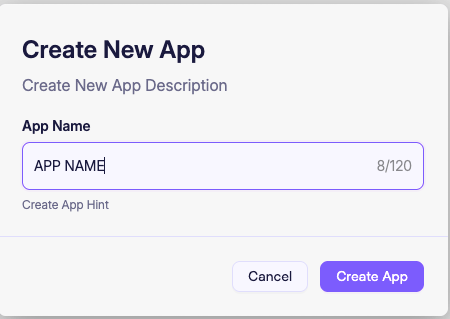 | Field | Description |
| ------------ | ---------------------------------------------------- |
| **App Name** | A descriptive name for your app. Max 120 characters. |
Click **Create App** to confirm, or **Cancel** to dismiss.
Use a name that reflects the use case — for example: `My Store Notifications` or `Support Bot`.
***
## App Card
After creation, the app appears as a card in your **My Apps** list.
| Field | Description |
| ------------ | ---------------------------------------------------- |
| **App Name** | A descriptive name for your app. Max 120 characters. |
Click **Create App** to confirm, or **Cancel** to dismiss.
Use a name that reflects the use case — for example: `My Store Notifications` or `Support Bot`.
***
## App Card
After creation, the app appears as a card in your **My Apps** list.
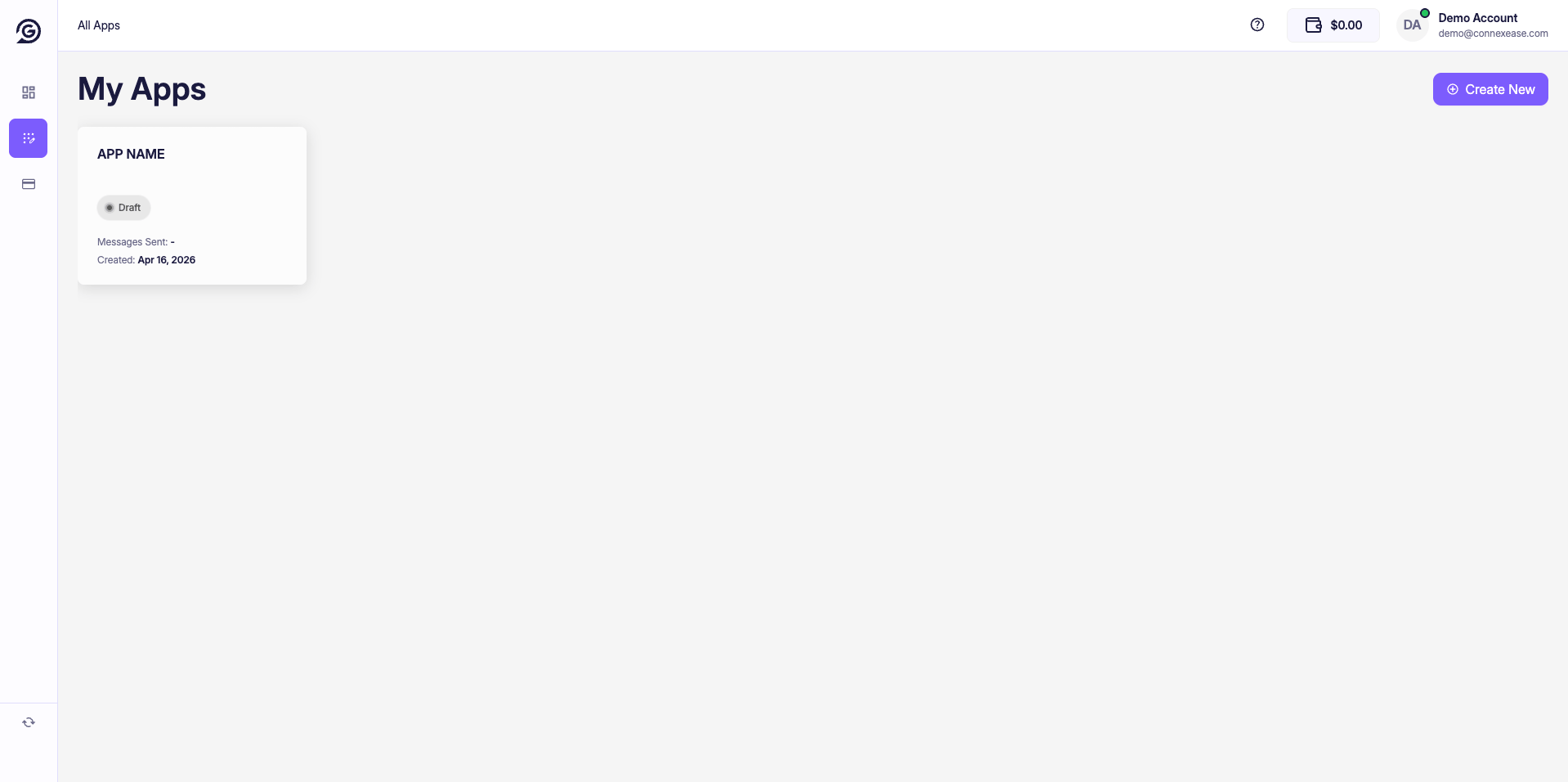 | Field | Description |
| ----------------- | -------------------------------------------------------------------------- |
| **App Name** | The name you gave the app at creation. |
| **Status badge** | `Draft` — not yet connected to Meta. `Live` — active and sending messages. |
| **Messages Sent** | Total number of messages sent through this app. |
| **Created** | Date the app was created. |
Click the card to open the app and begin configuration.
***
## App Statuses
| Status | Meaning |
| ------------ | ------------------------------------------------------------ |
| 🔘 **Draft** | App created but Meta Business account not yet connected. |
| 🟢 **Live** | Meta connected, phone number active, ready to send messages. |
***
## Next Step — Connect Meta
A newly created app will be in **Draft** status until you connect it to your Meta Business account. See [Connect Meta](/dashboard/app/connect-meta) to activate your app.
| Field | Description |
| ----------------- | -------------------------------------------------------------------------- |
| **App Name** | The name you gave the app at creation. |
| **Status badge** | `Draft` — not yet connected to Meta. `Live` — active and sending messages. |
| **Messages Sent** | Total number of messages sent through this app. |
| **Created** | Date the app was created. |
Click the card to open the app and begin configuration.
***
## App Statuses
| Status | Meaning |
| ------------ | ------------------------------------------------------------ |
| 🔘 **Draft** | App created but Meta Business account not yet connected. |
| 🟢 **Live** | Meta connected, phone number active, ready to send messages. |
***
## Next Step — Connect Meta
A newly created app will be in **Draft** status until you connect it to your Meta Business account. See [Connect Meta](/dashboard/app/connect-meta) to activate your app.