> ## Documentation Index
> Fetch the complete documentation index at: https://docs.gateway.connexease.com/llms.txt
> Use this file to discover all available pages before exploring further.
# Billing
> Manage your Gateway wallet, payment method, and view invoice history.
## Overview
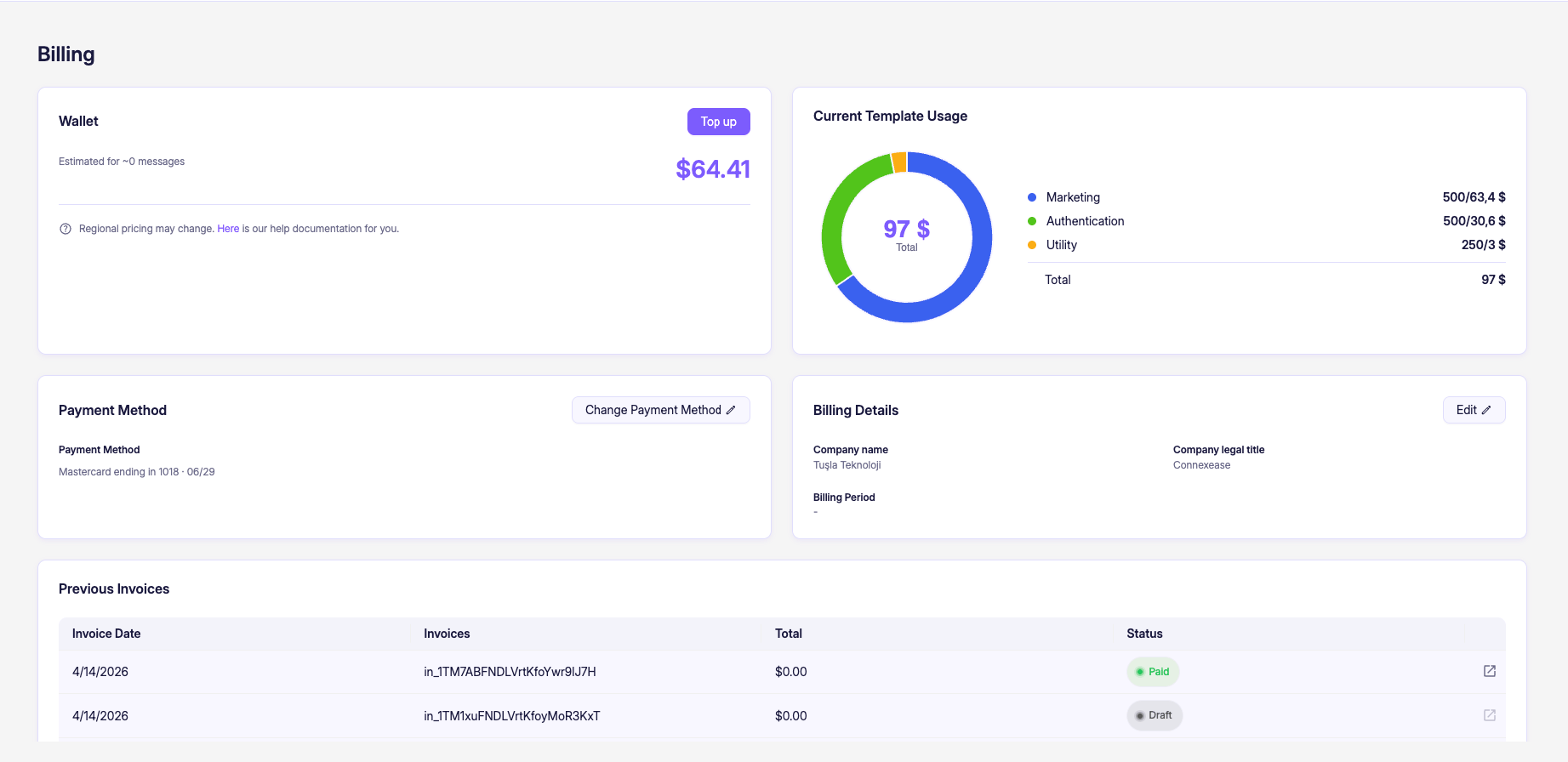
The **Billing** page gives you full control over your account balance, payment method, and invoice history. Access it from the left sidebar: **Billing**.
 ***
## Wallet
The **Wallet** section shows your current credit balance and an estimated message count based on your current spend rate.
| Element | Description |
| ------------------------- | ----------------------------------------------------------------------------------------------------------- |
| **Balance** | Your available Gateway credit (e.g. `$64.41`). This is deducted as messages are sent. |
| **Estimated messages** | An approximate number of messages your current balance can cover, based on your average cost per message. |
| **Regional pricing note** | A reminder that Meta's per-message pricing varies by country. Click **Here** for the pricing documentation. |
| **Top up** button | Opens the **Add funds** dialog to reload your wallet. |
### Adding Funds
***
## Wallet
The **Wallet** section shows your current credit balance and an estimated message count based on your current spend rate.
| Element | Description |
| ------------------------- | ----------------------------------------------------------------------------------------------------------- |
| **Balance** | Your available Gateway credit (e.g. `$64.41`). This is deducted as messages are sent. |
| **Estimated messages** | An approximate number of messages your current balance can cover, based on your average cost per message. |
| **Regional pricing note** | A reminder that Meta's per-message pricing varies by country. Click **Here** for the pricing documentation. |
| **Top up** button | Opens the **Add funds** dialog to reload your wallet. |
### Adding Funds
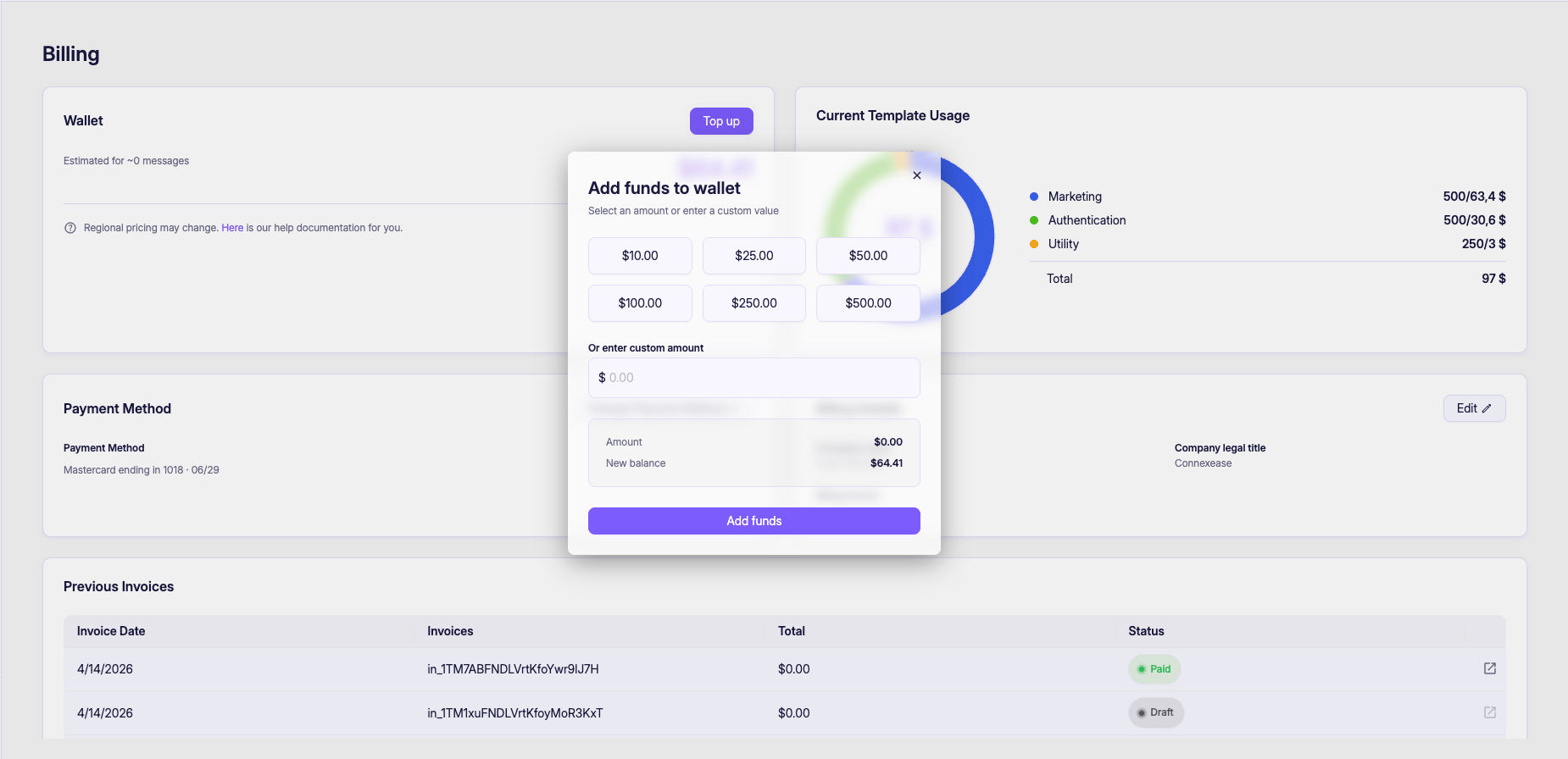 Click **Top up** to open the **Add funds to wallet** dialog.
**Quick-select amounts:** `$10.00` · `$25.00` · `$50.00` · `$100.00` · `$250.00` · `$500.00`
Or enter a **custom amount** in the input field.
A real-time summary shows:
| Field | Description |
| --------------- | ---------------------------------------- |
| **Amount** | The amount you are adding. |
| **New balance** | Your projected balance after the top-up. |
Click **Add funds** to charge your saved payment method and credit your wallet immediately.
Funds are deducted in real time as messages are sent. There is no automatic top-up — you must manually reload your wallet when your balance is low.
***
## Current Template Usage
The donut chart on the right shows a breakdown of your template spending by category for the current period.
| Category | Color | Description |
| ------------------ | --------- | ------------------------------------ |
| **Marketing** | 🔵 Blue | Promotional message costs |
| **Authentication** | 🟢 Green | OTP and verification message costs |
| **Utility** | 🟠 Orange | Transactional message costs |
| **Total** | — | Combined spend across all categories |
The numbers shown follow the format `messages sent / cost in $`.
***
## Payment Method
The **Payment Method** section shows your currently saved card.
| Element | Description |
| ------------------------- | --------------------------------------------------------------- |
| **Payment Method** | Card type and last 4 digits (e.g. `Mastercard ending in 1018`). |
| **Expiry** | Card expiry date (e.g. `06/29`). |
| **Change Payment Method** | Opens the card update dialog. |
### Adding or Changing a Card
Click **Top up** to open the **Add funds to wallet** dialog.
**Quick-select amounts:** `$10.00` · `$25.00` · `$50.00` · `$100.00` · `$250.00` · `$500.00`
Or enter a **custom amount** in the input field.
A real-time summary shows:
| Field | Description |
| --------------- | ---------------------------------------- |
| **Amount** | The amount you are adding. |
| **New balance** | Your projected balance after the top-up. |
Click **Add funds** to charge your saved payment method and credit your wallet immediately.
Funds are deducted in real time as messages are sent. There is no automatic top-up — you must manually reload your wallet when your balance is low.
***
## Current Template Usage
The donut chart on the right shows a breakdown of your template spending by category for the current period.
| Category | Color | Description |
| ------------------ | --------- | ------------------------------------ |
| **Marketing** | 🔵 Blue | Promotional message costs |
| **Authentication** | 🟢 Green | OTP and verification message costs |
| **Utility** | 🟠 Orange | Transactional message costs |
| **Total** | — | Combined spend across all categories |
The numbers shown follow the format `messages sent / cost in $`.
***
## Payment Method
The **Payment Method** section shows your currently saved card.
| Element | Description |
| ------------------------- | --------------------------------------------------------------- |
| **Payment Method** | Card type and last 4 digits (e.g. `Mastercard ending in 1018`). |
| **Expiry** | Card expiry date (e.g. `06/29`). |
| **Change Payment Method** | Opens the card update dialog. |
### Adding or Changing a Card
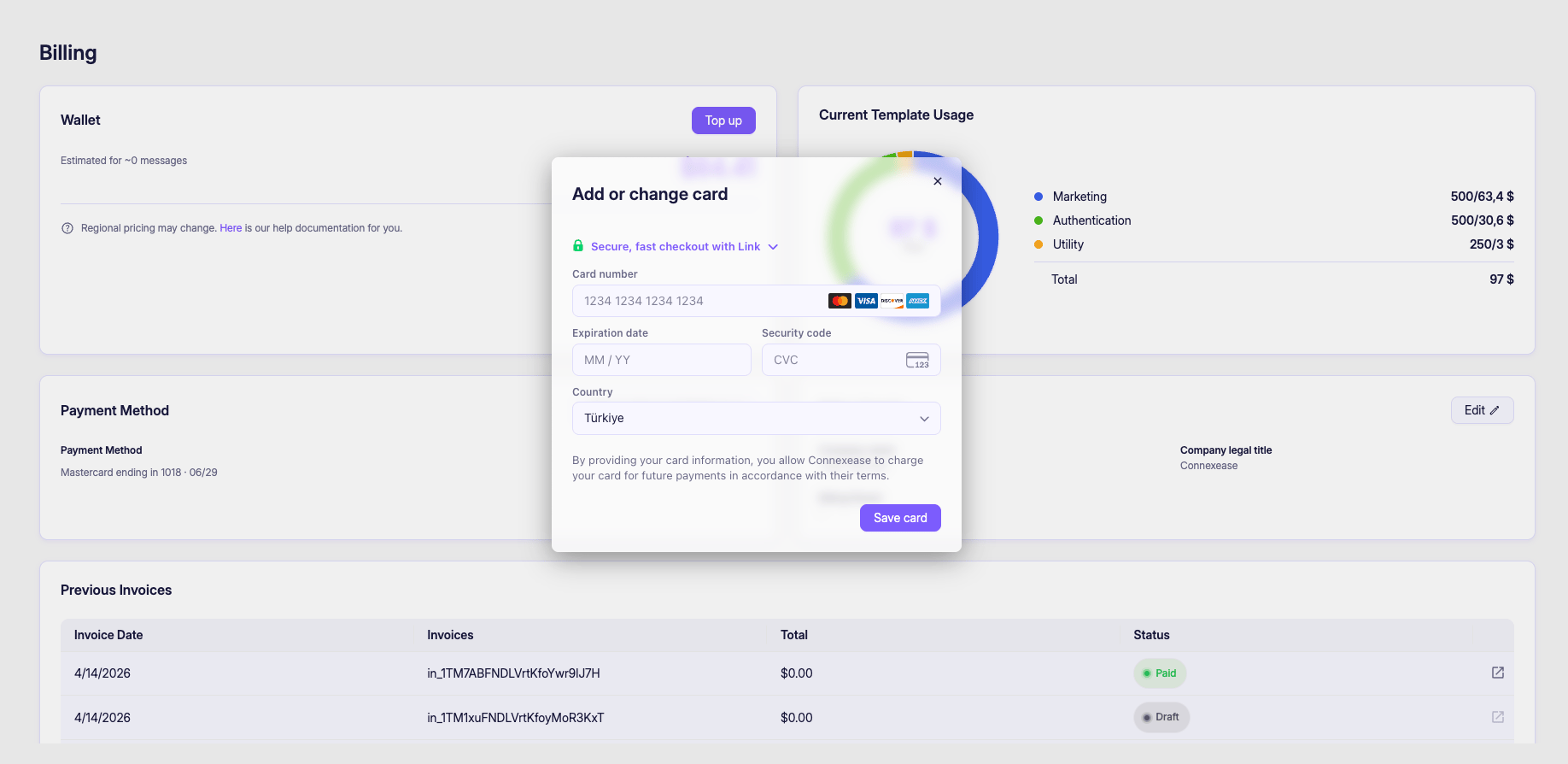 Click **Change Payment Method** (or **Edit** from the Billing Details section) to open the **Add or change card** dialog.
| Field | Description |
| ------------------- | ------------------------------------------------------------------------- |
| **Card number** | Your 16-digit card number. Supports Mastercard, Visa, Discover, and Amex. |
| **Expiration date** | Card expiry in `MM/YY` format. |
| **Security code** | 3 or 4 digit CVC/CVV. |
| **Country** | Billing country for the card. |
Click **Save card** to update your payment method. Card data is processed securely via Stripe.
***
## Billing Details
The **Billing Details** card shows your invoicing information.
| Field | Description |
| ----------------------- | ------------------------------------------------------ |
| **Company name** | Your registered company name (e.g. `Tuşla Teknoloji`). |
| **Company legal title** | Your legal entity name (e.g. `Connexease`). |
| **Billing Period** | The current billing cycle. |
Click **Edit** to update your billing information.
***
## Previous Invoices
The **Previous Invoices** table lists all past invoices on your account.
| Column | Description |
| ---------------- | ------------------------------------------------ |
| **Invoice Date** | Date the invoice was generated. |
| **Invoices** | Invoice ID (e.g. `in_1TM7ABFNDLVrtKfoYwr9IJ7H`). |
| **Total** | Total amount billed on that invoice. |
| **Status** | `Paid` (green) or `Draft` (grey). |
Click the external link icon on the right of any row to open the full invoice in a new tab.
Download your invoices regularly for accounting purposes. Paid invoices are available as PDFs via the external link.
Click **Change Payment Method** (or **Edit** from the Billing Details section) to open the **Add or change card** dialog.
| Field | Description |
| ------------------- | ------------------------------------------------------------------------- |
| **Card number** | Your 16-digit card number. Supports Mastercard, Visa, Discover, and Amex. |
| **Expiration date** | Card expiry in `MM/YY` format. |
| **Security code** | 3 or 4 digit CVC/CVV. |
| **Country** | Billing country for the card. |
Click **Save card** to update your payment method. Card data is processed securely via Stripe.
***
## Billing Details
The **Billing Details** card shows your invoicing information.
| Field | Description |
| ----------------------- | ------------------------------------------------------ |
| **Company name** | Your registered company name (e.g. `Tuşla Teknoloji`). |
| **Company legal title** | Your legal entity name (e.g. `Connexease`). |
| **Billing Period** | The current billing cycle. |
Click **Edit** to update your billing information.
***
## Previous Invoices
The **Previous Invoices** table lists all past invoices on your account.
| Column | Description |
| ---------------- | ------------------------------------------------ |
| **Invoice Date** | Date the invoice was generated. |
| **Invoices** | Invoice ID (e.g. `in_1TM7ABFNDLVrtKfoYwr9IJ7H`). |
| **Total** | Total amount billed on that invoice. |
| **Status** | `Paid` (green) or `Draft` (grey). |
Click the external link icon on the right of any row to open the full invoice in a new tab.
Download your invoices regularly for accounting purposes. Paid invoices are available as PDFs via the external link.