> ## Documentation Index
> Fetch the complete documentation index at: https://docs.gateway.connexease.com/llms.txt
> Use this file to discover all available pages before exploring further.
# Create an Account
> Step-by-step guide to registering a new Connexease Gateway account.
## Overview
Creating a Gateway account is a **3-step onboarding flow**:
1. **Account Setup** — Personal info and credentials
2. **Identity Verification** — Phone number confirmation via WhatsApp OTP
3. **Organization Details** — Your company profile
You can start registration from the login page by clicking **Create an Account**.
***
## Step 1 — Account Setup
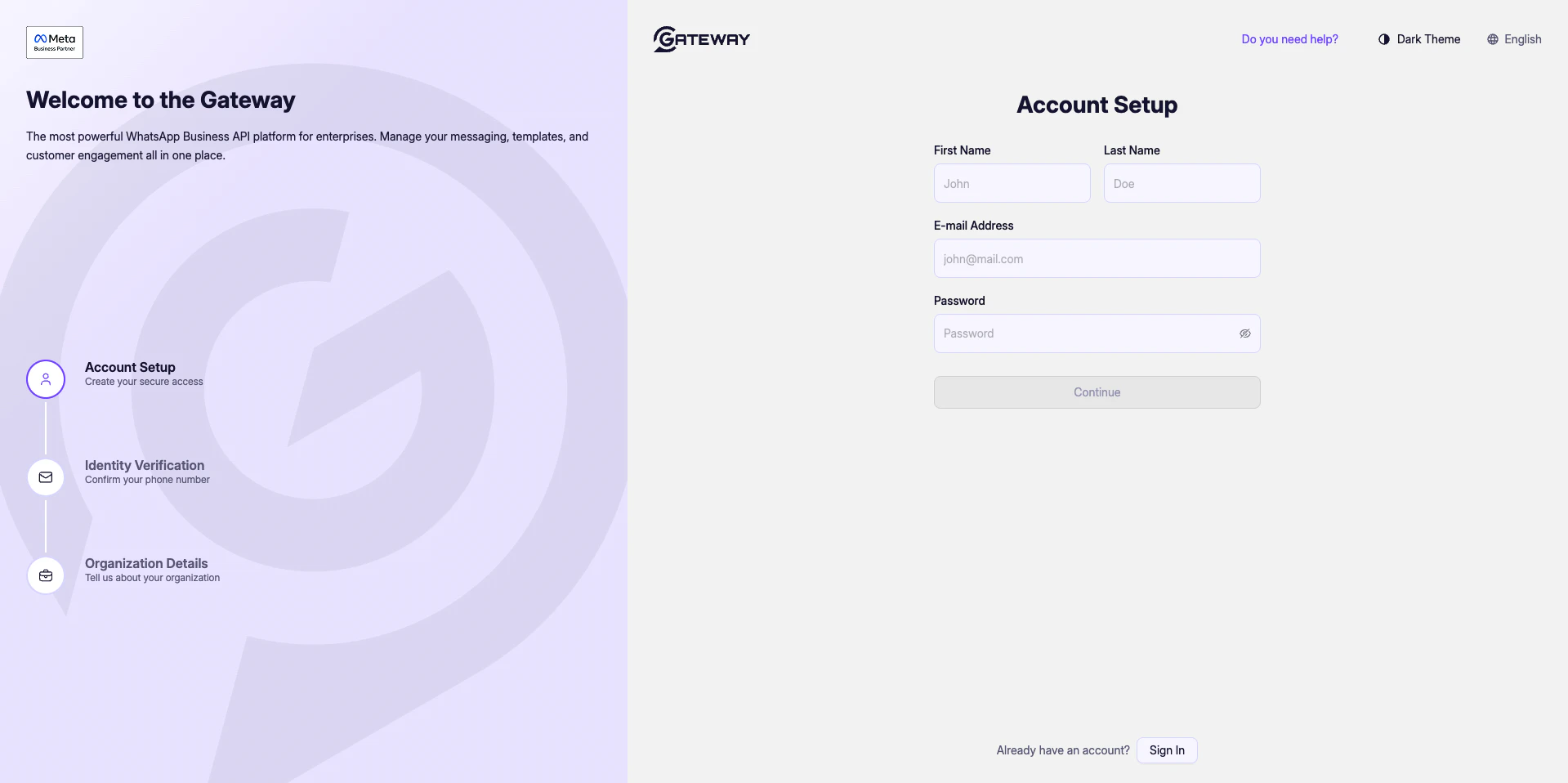 Fill in your personal details to create your secure access credentials.
| Field | Description |
| ------------------ | ------------------------------------------------------------------- |
| **First Name** | Your given name (e.g. `John`) |
| **Last Name** | Your family name (e.g. `Doe`) |
| **E-mail Address** | A valid email you have access to. Used for login and notifications. |
| **Password** | Choose a strong password for your account. |
Once all fields are filled, the **Continue** button becomes active. Click it to proceed to Identity Verification.
Fill in your personal details to create your secure access credentials.
| Field | Description |
| ------------------ | ------------------------------------------------------------------- |
| **First Name** | Your given name (e.g. `John`) |
| **Last Name** | Your family name (e.g. `Doe`) |
| **E-mail Address** | A valid email you have access to. Used for login and notifications. |
| **Password** | Choose a strong password for your account. |
Once all fields are filled, the **Continue** button becomes active. Click it to proceed to Identity Verification.
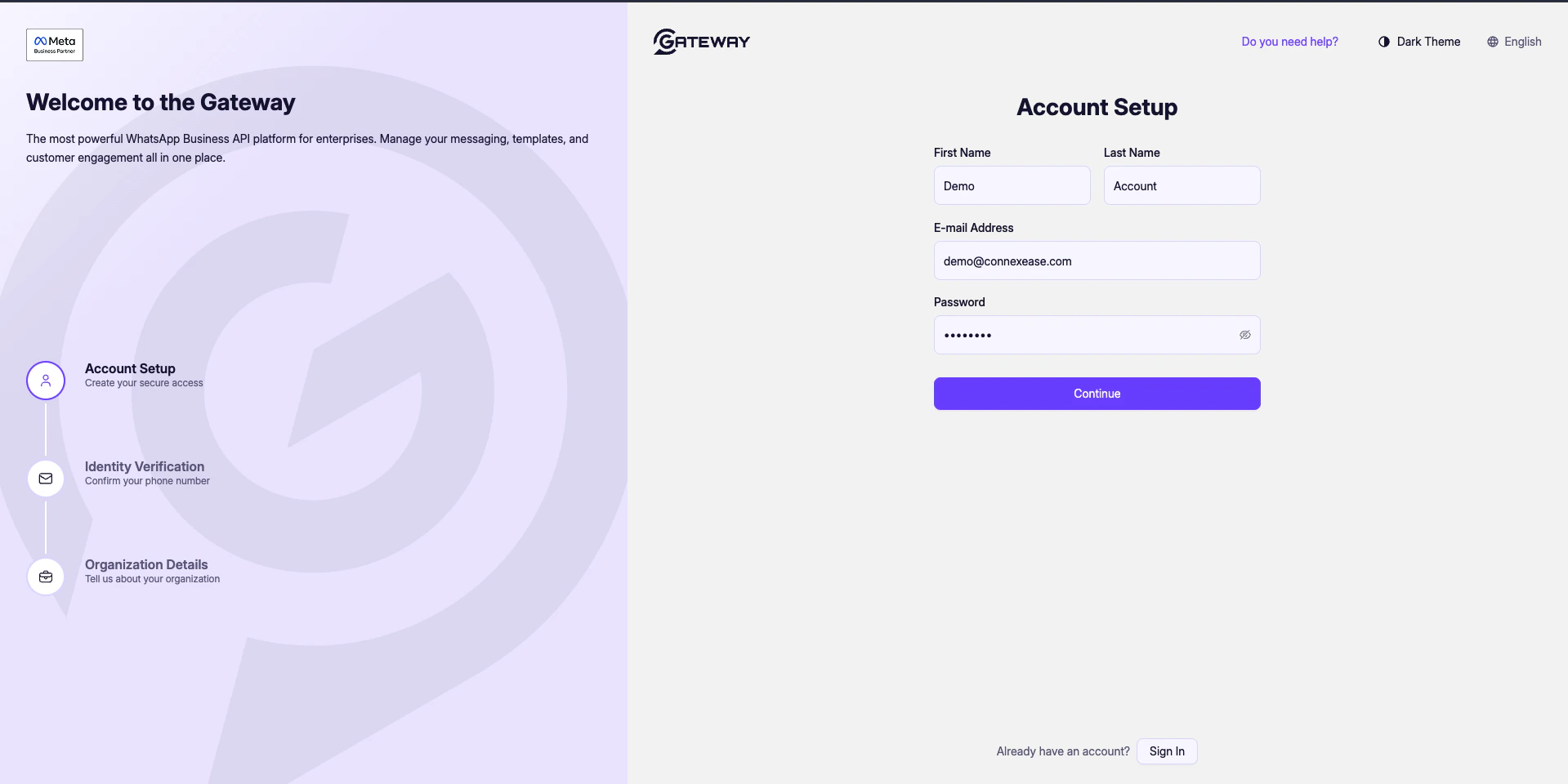 Use a business email address if you are registering on behalf of a company.
***
## Step 2 — Identity Verification
Use a business email address if you are registering on behalf of a company.
***
## Step 2 — Identity Verification
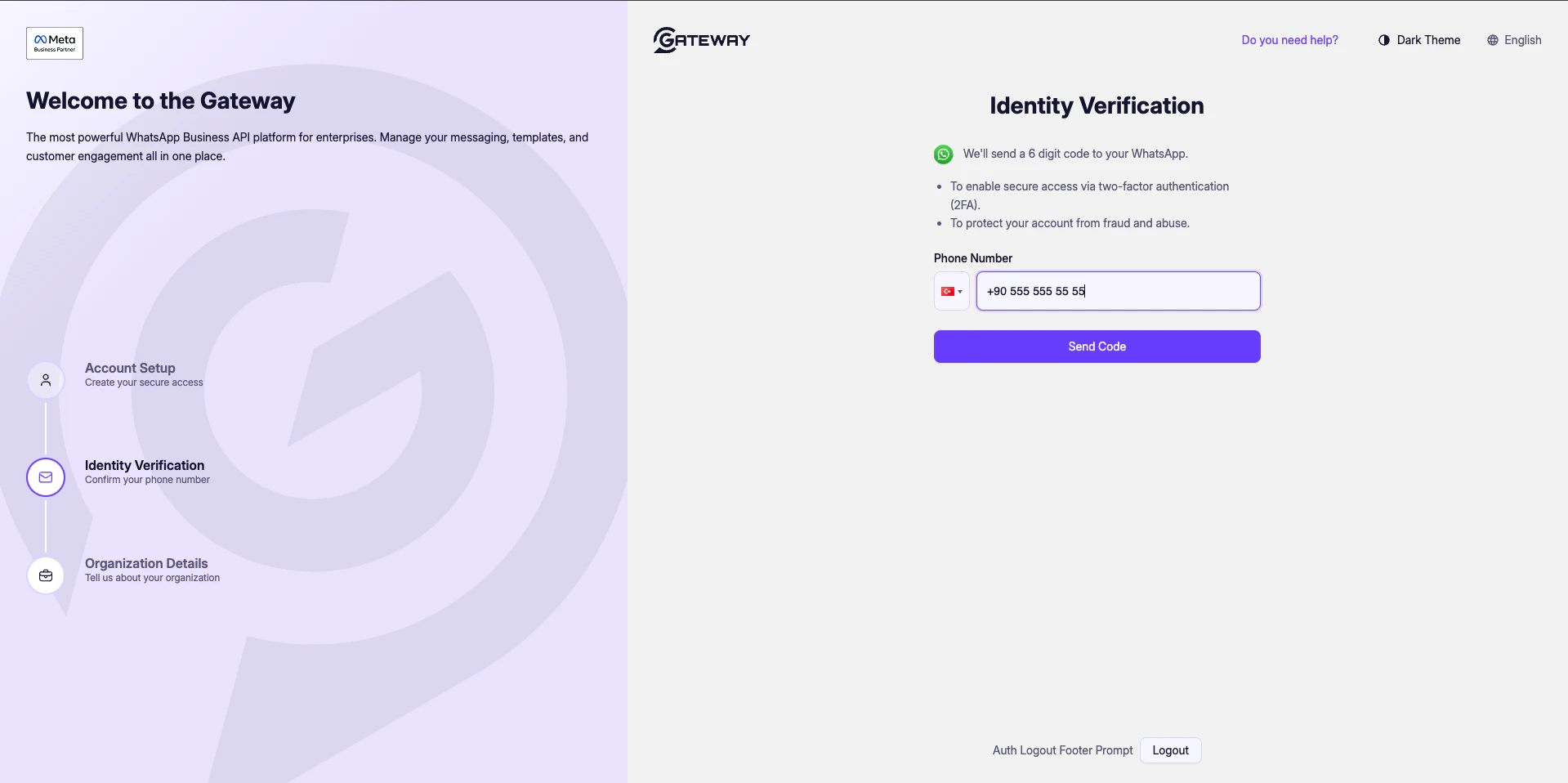 Gateway uses **WhatsApp-based two-factor authentication (2FA)** to verify your identity. A 6-digit OTP code will be sent to the WhatsApp number you provide.
**Why is this required?**
* To enable secure access via two-factor authentication.
* To protect your account from fraud and abuse.
### Enter Your Phone Number
Select your country code from the flag dropdown and enter your full WhatsApp-enabled phone number (e.g. `+90 555 555 55 55`).
Click **Send Code** to receive the OTP on WhatsApp.
***
### Enter the OTP Code
Gateway uses **WhatsApp-based two-factor authentication (2FA)** to verify your identity. A 6-digit OTP code will be sent to the WhatsApp number you provide.
**Why is this required?**
* To enable secure access via two-factor authentication.
* To protect your account from fraud and abuse.
### Enter Your Phone Number
Select your country code from the flag dropdown and enter your full WhatsApp-enabled phone number (e.g. `+90 555 555 55 55`).
Click **Send Code** to receive the OTP on WhatsApp.
***
### Enter the OTP Code
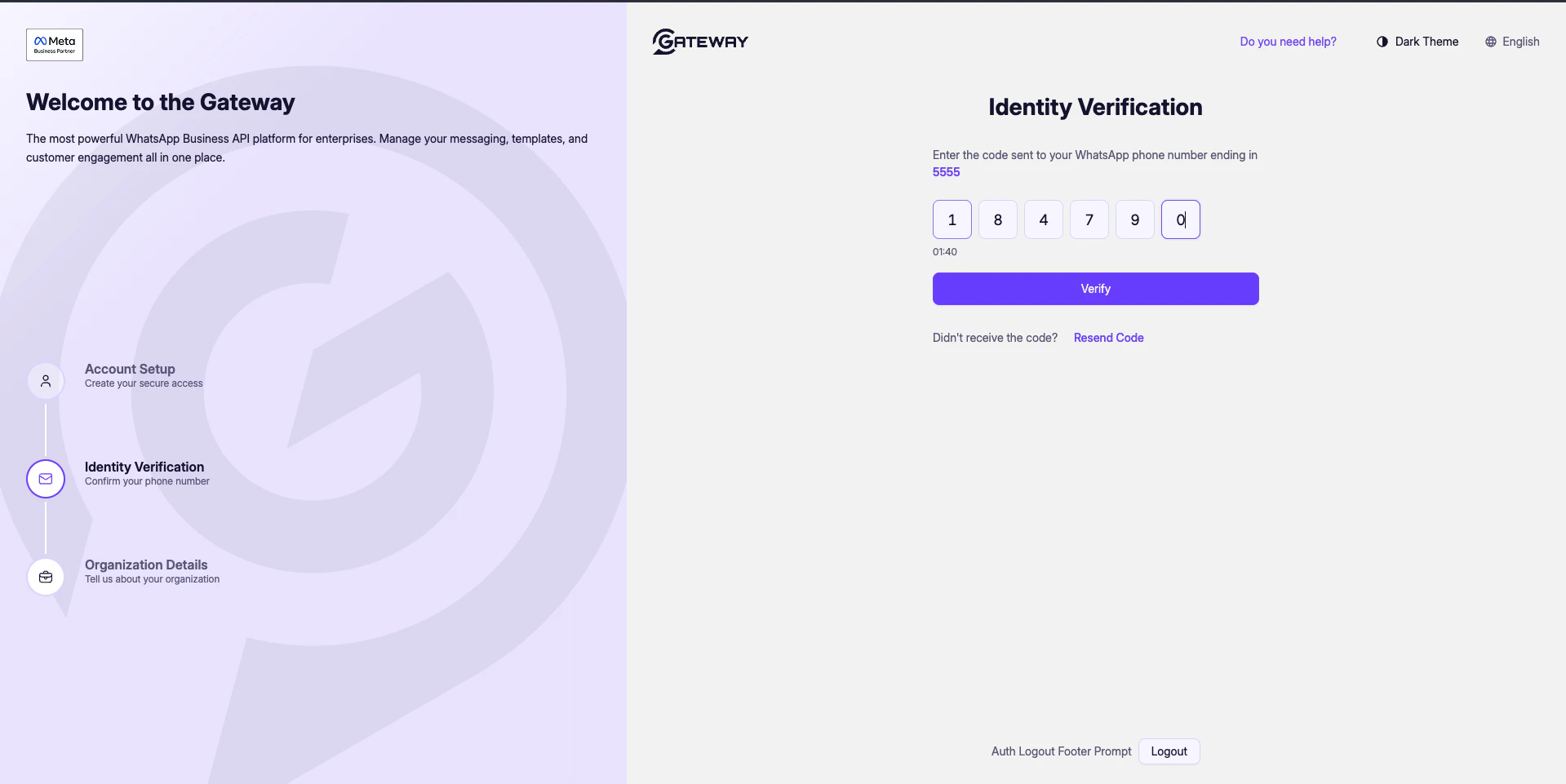 Enter the 6-digit code sent to your WhatsApp number. The code is shown ending in the last 4 digits of your phone number for confirmation.
| Element | Description |
| ----------------- | ---------------------------------------------------------------- |
| **6-digit input** | Enter each digit of the code received on WhatsApp. |
| **Timer (01:40)** | The code is valid for 2 minutes. |
| **Resend Code** | Request a new OTP if the current one expired or wasn't received. |
| **Verify** | Submits the code and proceeds to the next step. |
The OTP code expires after 2 minutes. If it expires, click **Resend Code** to get a new one.
***
## Step 3 — Organization Details
Enter the 6-digit code sent to your WhatsApp number. The code is shown ending in the last 4 digits of your phone number for confirmation.
| Element | Description |
| ----------------- | ---------------------------------------------------------------- |
| **6-digit input** | Enter each digit of the code received on WhatsApp. |
| **Timer (01:40)** | The code is valid for 2 minutes. |
| **Resend Code** | Request a new OTP if the current one expired or wasn't received. |
| **Verify** | Submits the code and proceeds to the next step. |
The OTP code expires after 2 minutes. If it expires, click **Resend Code** to get a new one.
***
## Step 3 — Organization Details
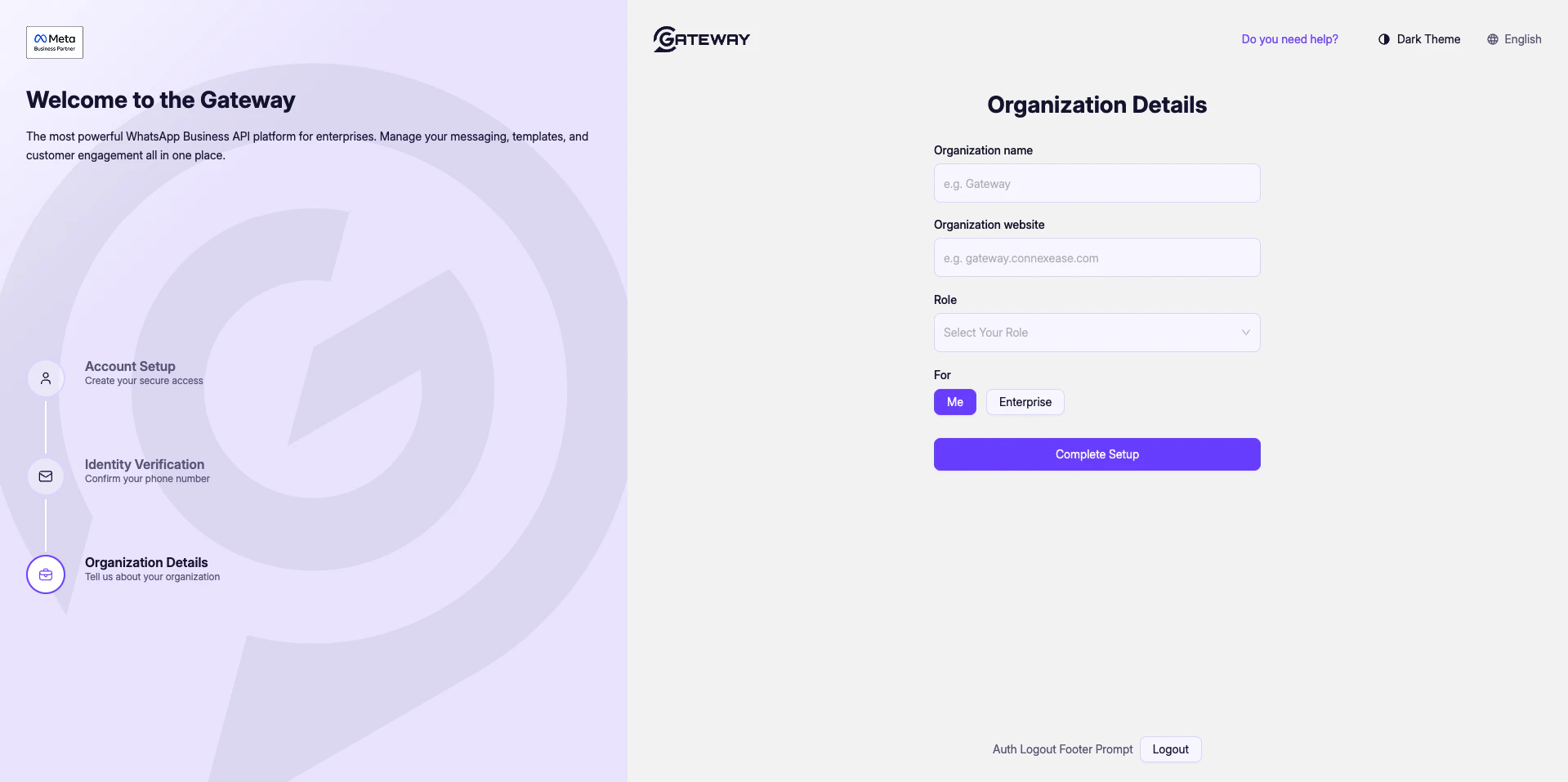 In the final step, tell Gateway about your organization.
| Field | Description |
| ------------------------ | ------------------------------------------------------------------------------------------- |
| **Organization name** | Your company or project name (e.g. `Gateway`) |
| **Organization website** | Your website URL (e.g. `https://gateway.connexease.com`) |
| **Role** | Your role within the organization. Select from the dropdown. |
| **For** | Choose **Me** for a personal/individual account or **Enterprise** for a company-wide setup. |
In the final step, tell Gateway about your organization.
| Field | Description |
| ------------------------ | ------------------------------------------------------------------------------------------- |
| **Organization name** | Your company or project name (e.g. `Gateway`) |
| **Organization website** | Your website URL (e.g. `https://gateway.connexease.com`) |
| **Role** | Your role within the organization. Select from the dropdown. |
| **For** | Choose **Me** for a personal/individual account or **Enterprise** for a company-wide setup. |
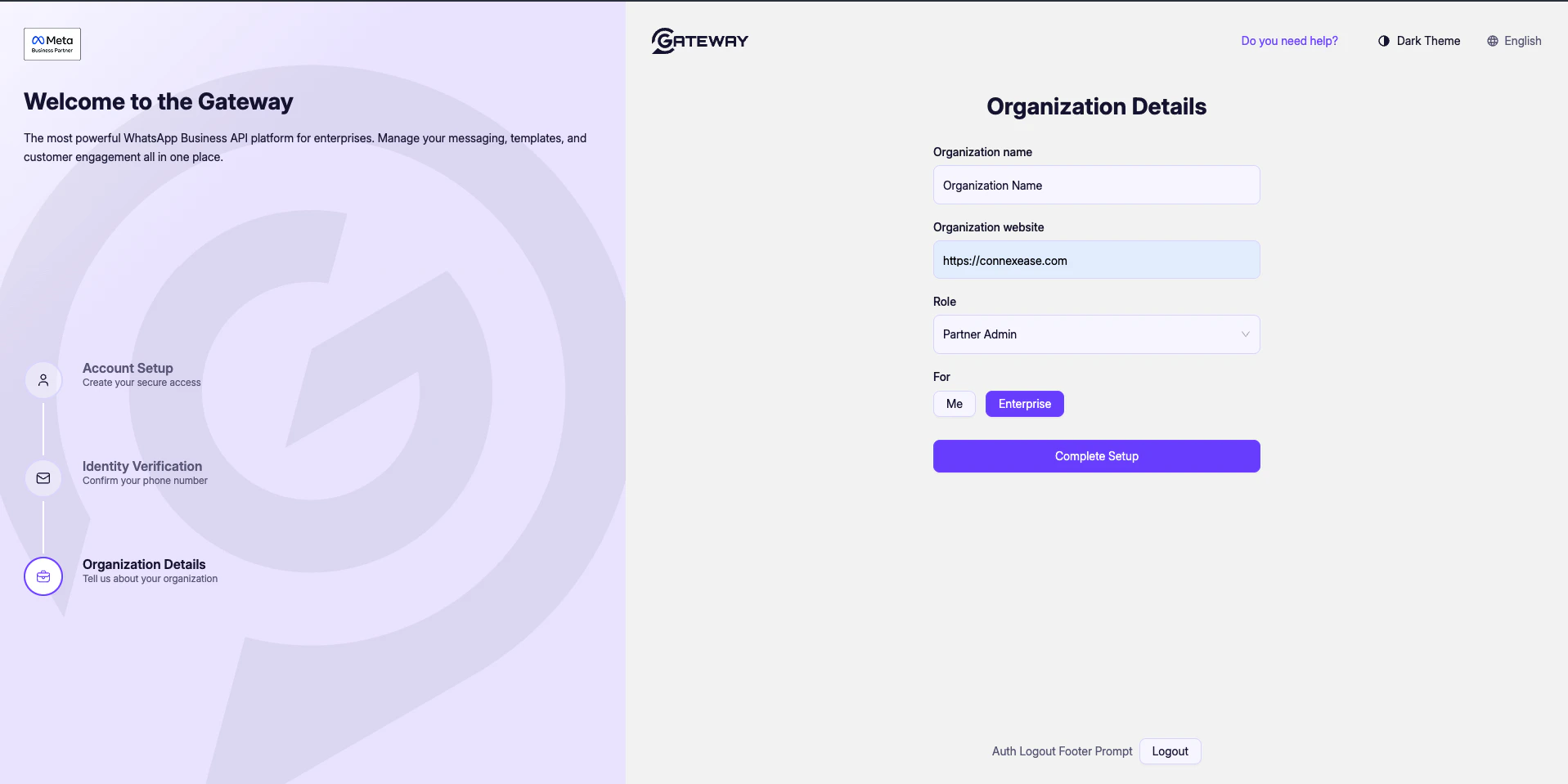 Once all fields are complete, click **Complete Setup** to finalize your account and be redirected to the Dashboard.
The **For** toggle determines your account type. **Enterprise** accounts have access to team management and advanced billing features.
Once all fields are complete, click **Complete Setup** to finalize your account and be redirected to the Dashboard.
The **For** toggle determines your account type. **Enterprise** accounts have access to team management and advanced billing features.