
Developer Tab Overview
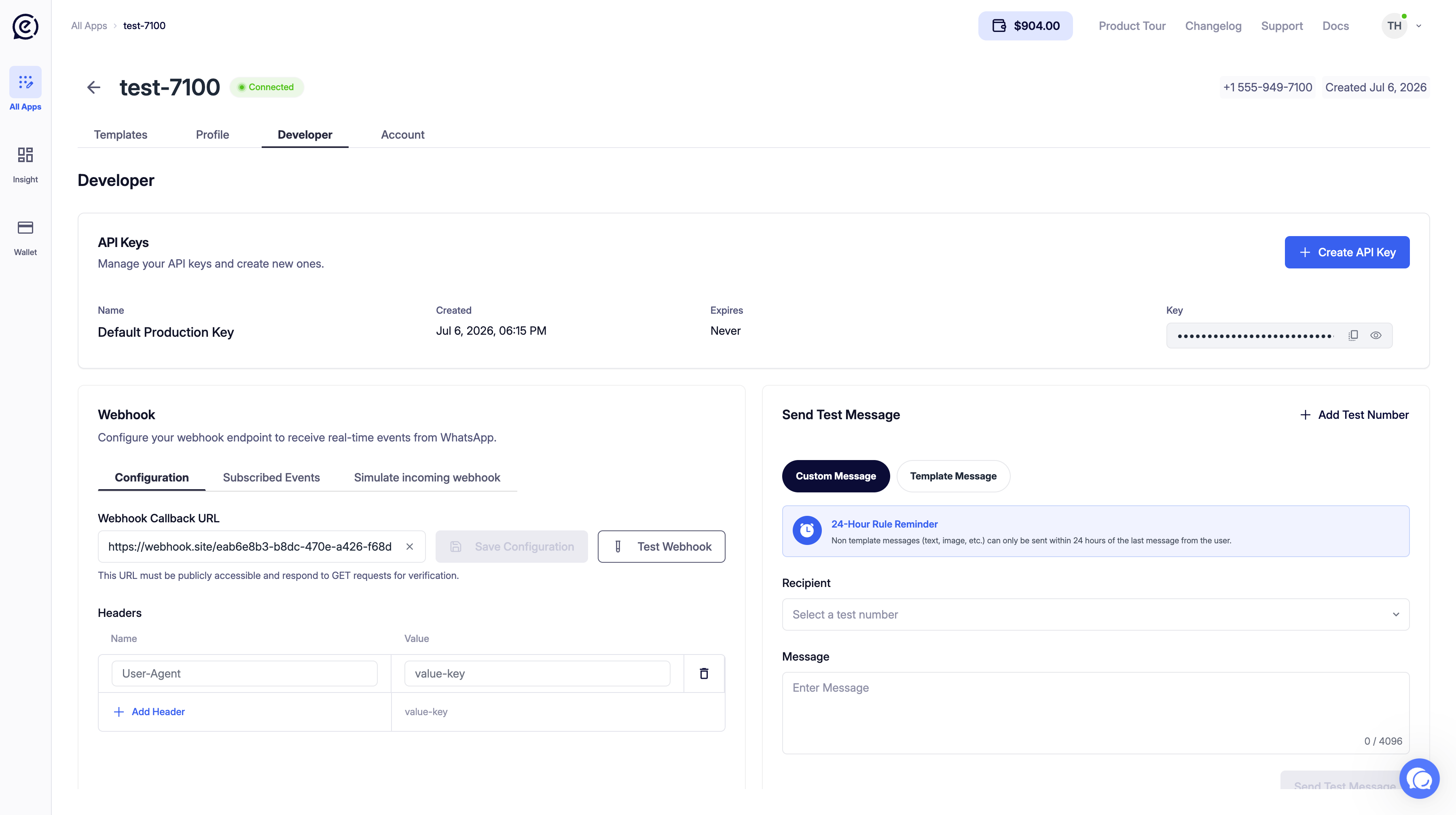
Click the Developer tab on your application’s detail page. This tab contains three main sections:- API Keys — Manage API keys for accessing your application
- Webhook — Configure an endpoint to receive real-time WhatsApp events
- Send Test Message — Send test messages to registered test numbers
API Keys
In the API Keys section, you can view, copy, and create new API keys for your application. Each row contains the following information:Creating a New API Key
Click the + Create API Key button in the top right corner.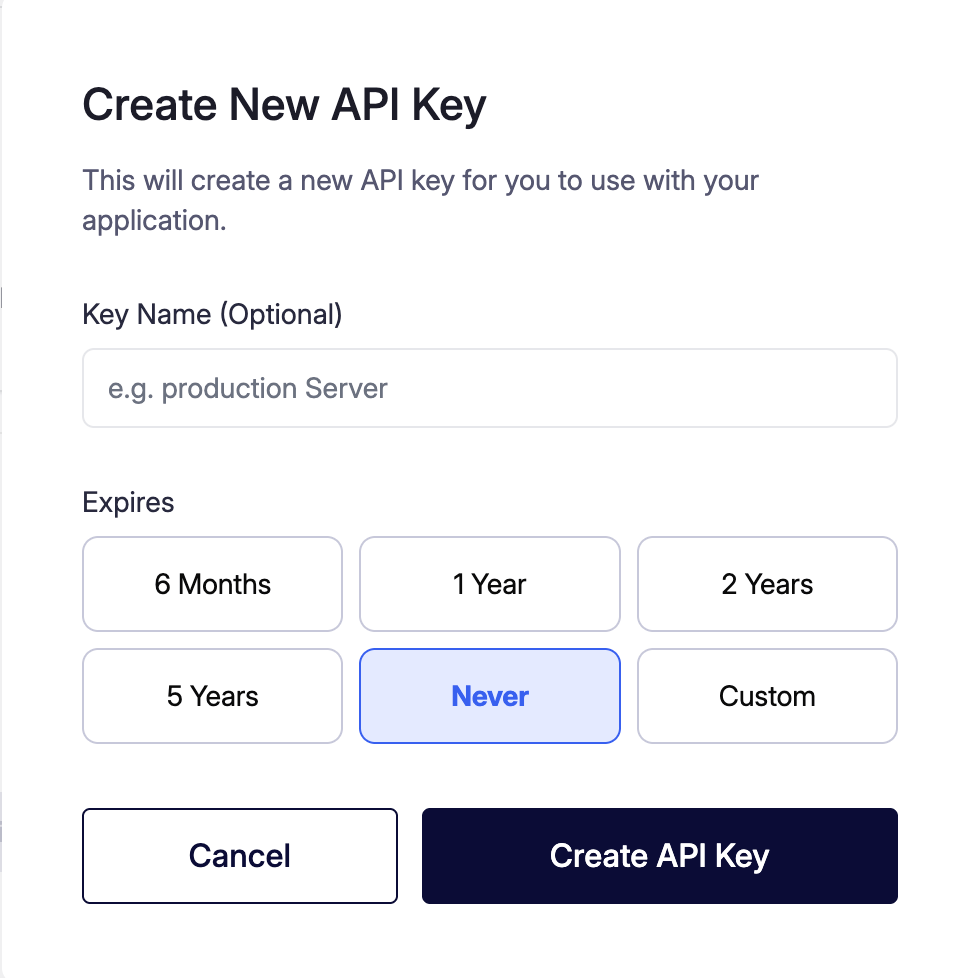
After entering the information, click Create API Key.
Important: The key can only be viewed in full at the moment it is created. Don’t forget to save it somewhere secure.
Webhook
In the Webhook section, you configure an endpoint to receive real-time events from WhatsApp (messages, status updates, etc.). There are three tabs: Configuration, Subscribed Events, and Simulate incoming webhook.Configuration
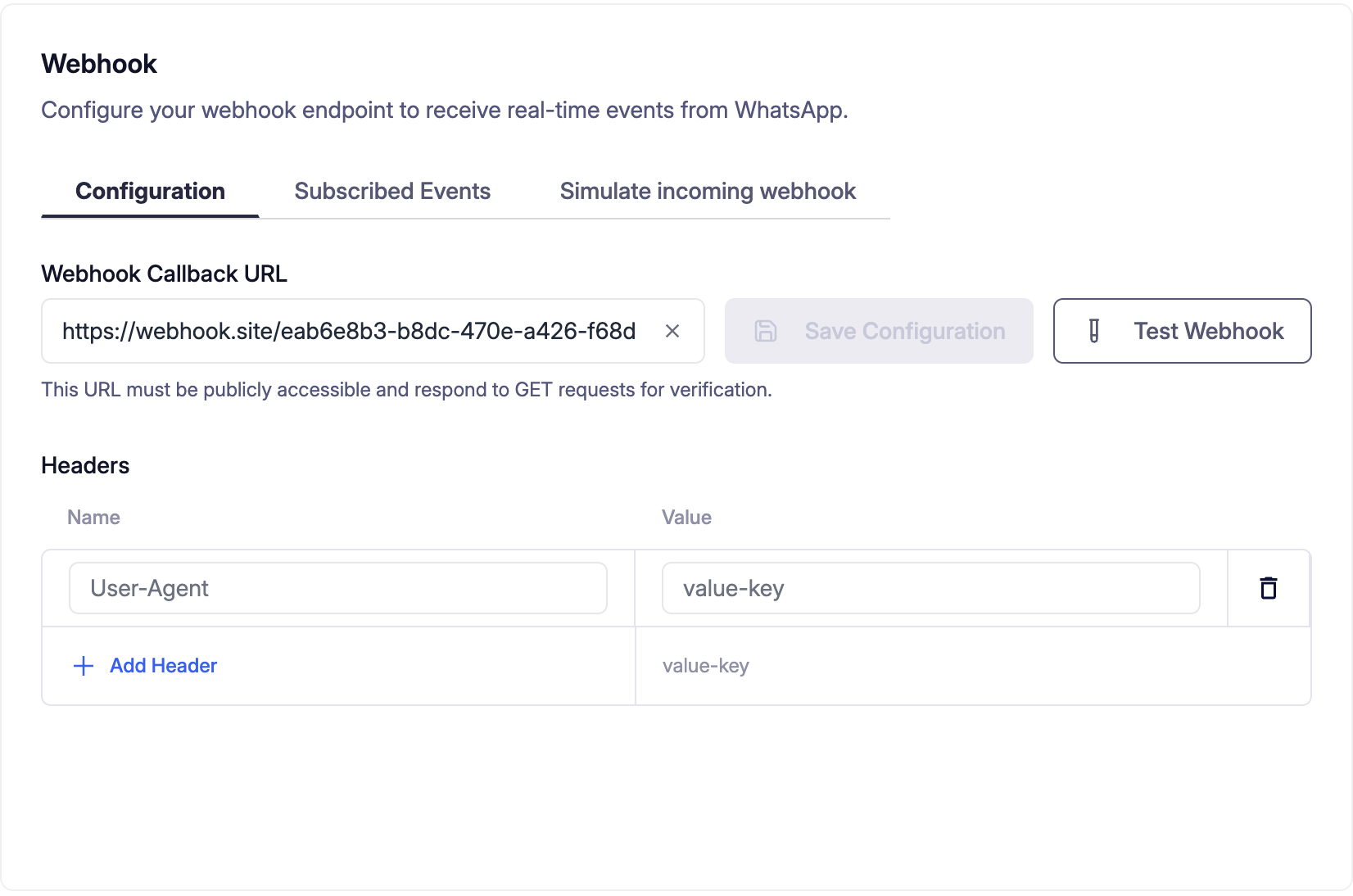
After entering the URL, first click Save Configuration, then verify the connection with Test Webhook.
Subscribed Events
In this tab, you select which WhatsApp events will be sent to your webhook.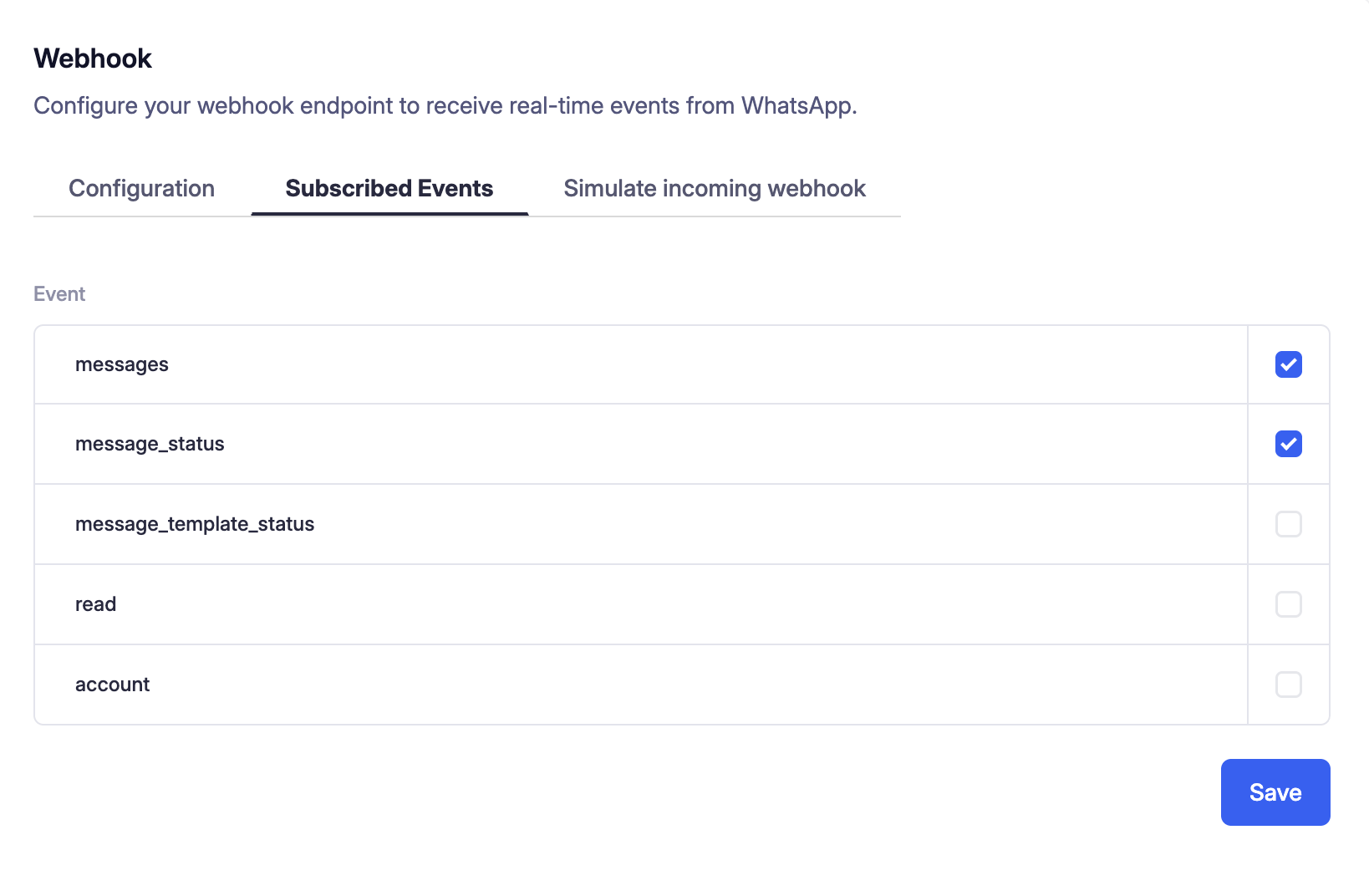
Check the boxes next to the events you want and click Save.
Simulate Incoming Webhook
Use this tab to test your webhook endpoint without waiting for a real WhatsApp message.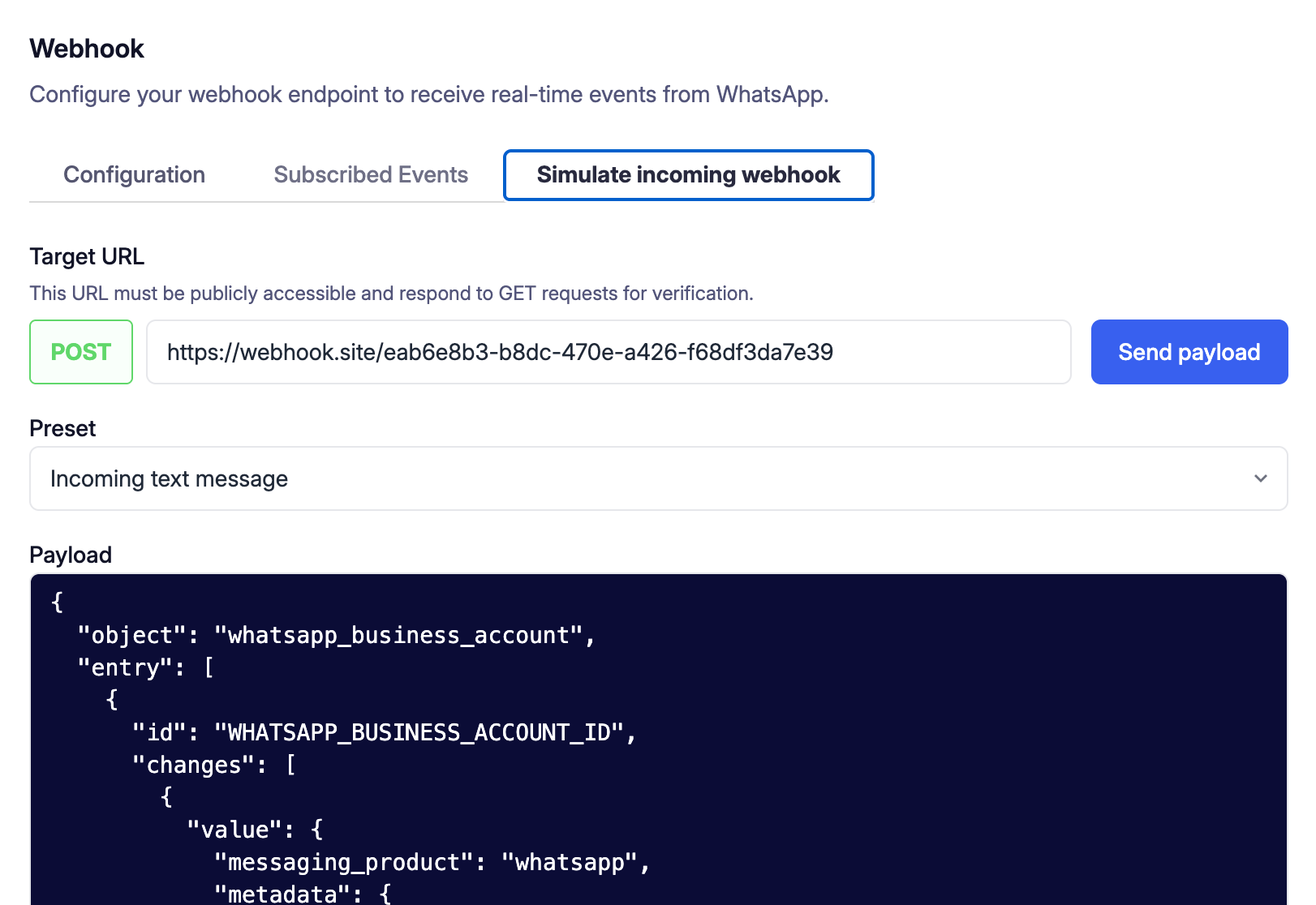
Send Test Message
This panel lets you send test messages to registered test numbers. There are two modes: Custom Message and Template Message.Adding a Test Number
First, you need to register the number you want to use as a recipient. Click the + Add Test Number button in the top right corner.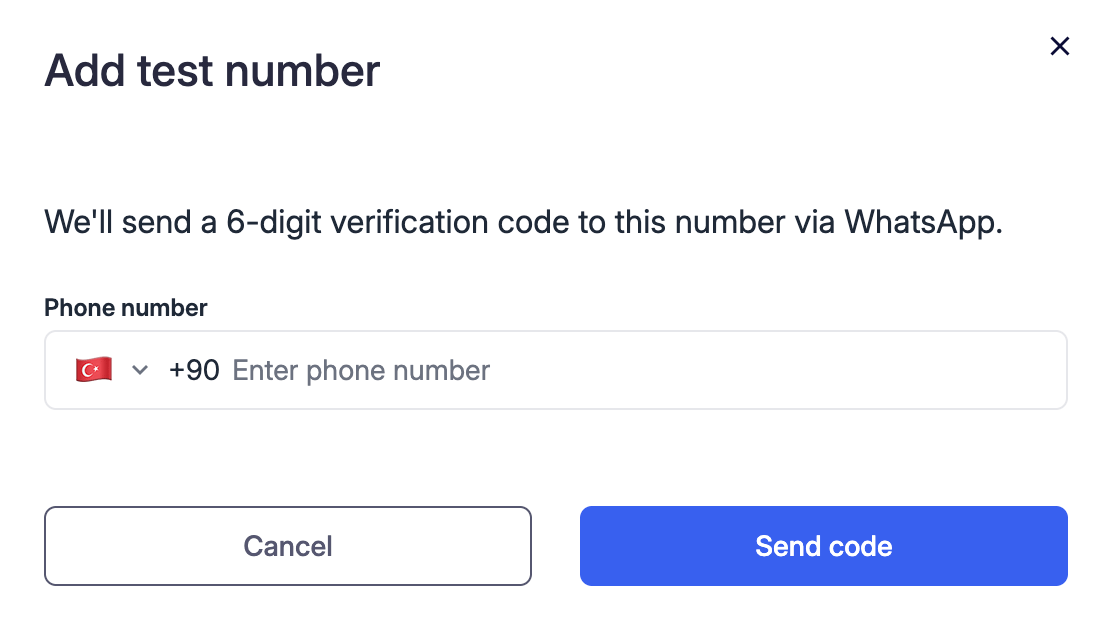
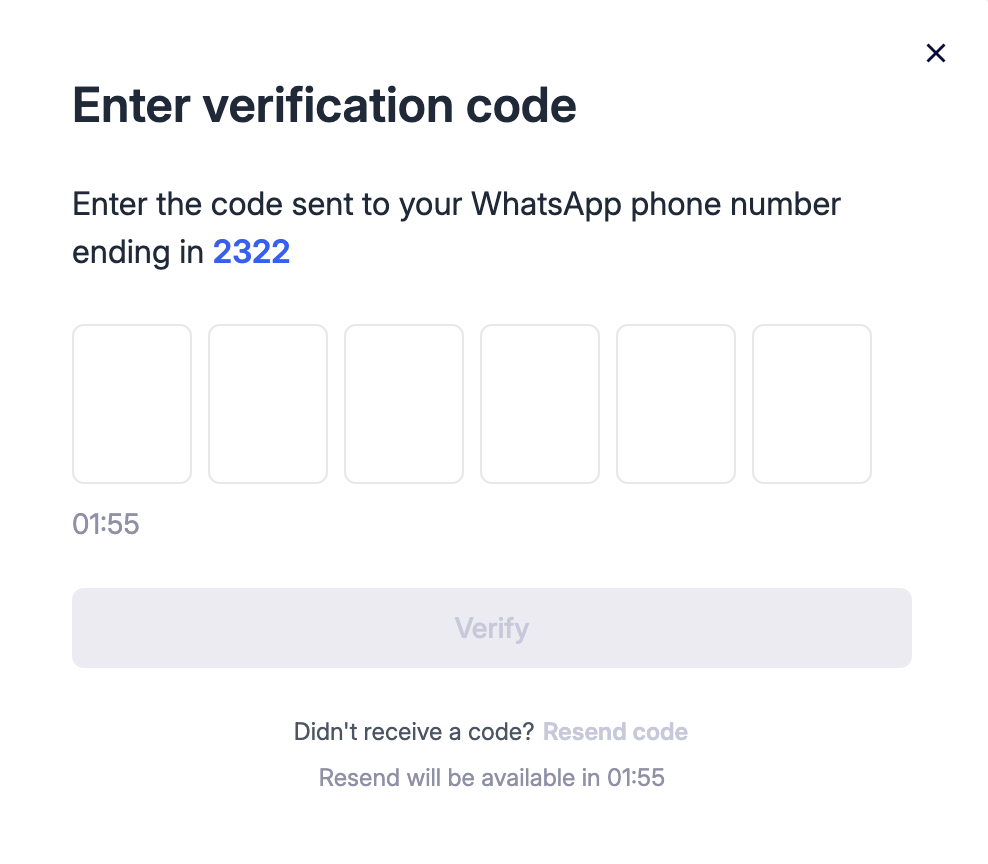
The code is valid for 2 minutes. If it expires, use Resend code to request a new one.
Custom Message
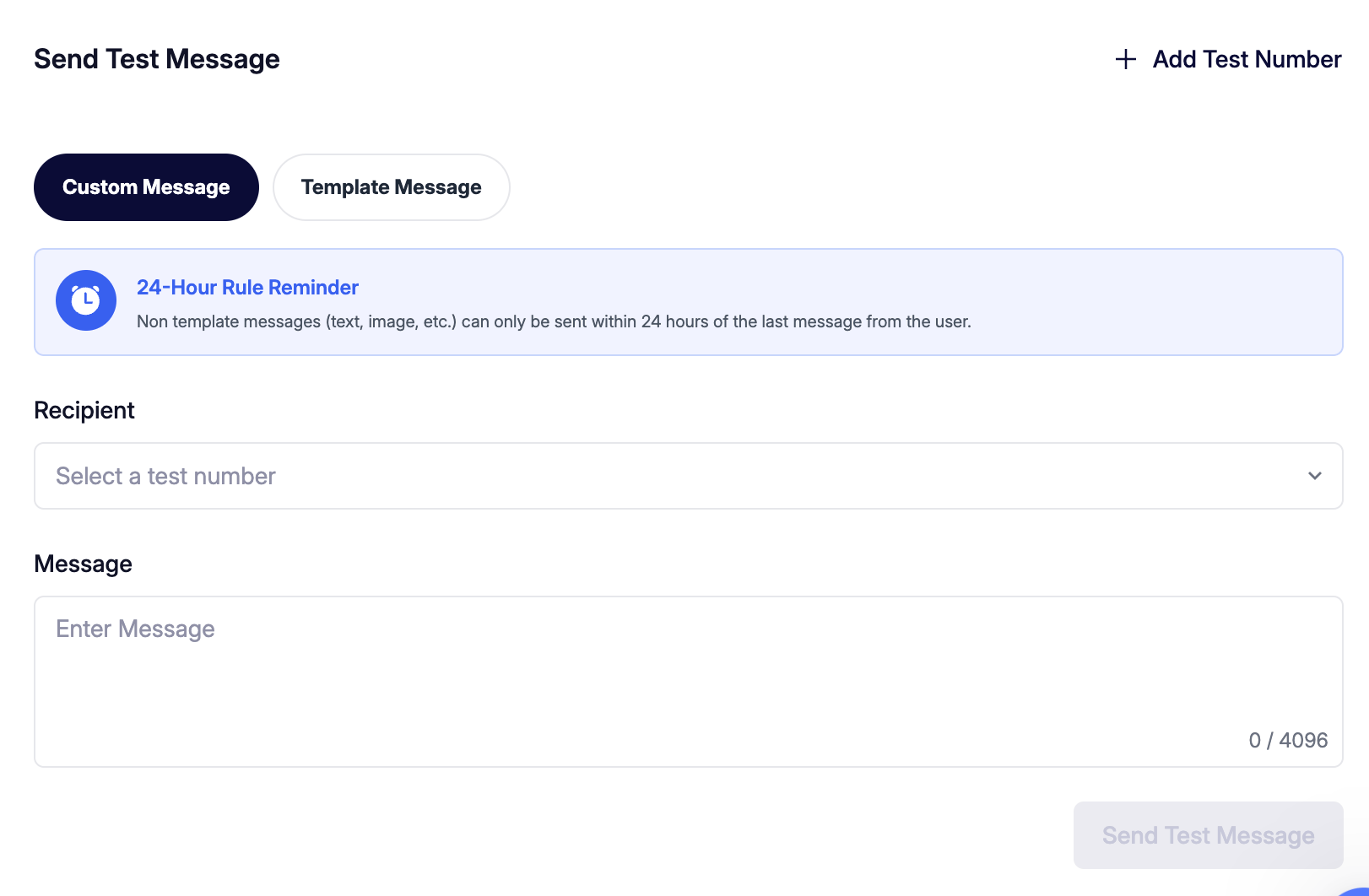
24-Hour Rule Reminder: Non-template messages (text, media, etc.) can only be sent within 24 hours of the user’s last message.
Fill in the fields and click Send Test Message.
Template Message
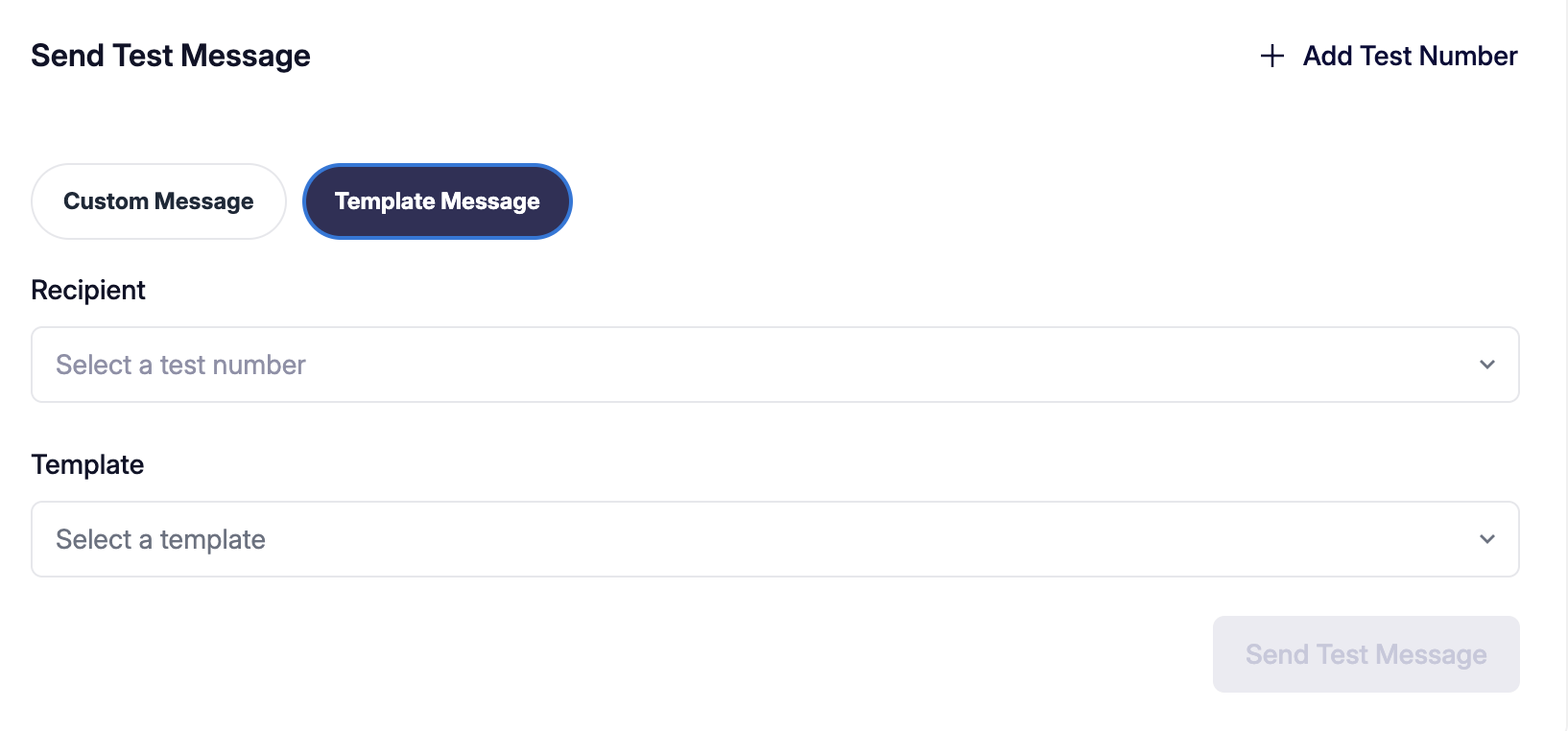
Make your selections and click Send Test Message.