Documentation Index

Fetch the complete documentation index at: https://docs.gateway.connexease.com/llms.txt

Use this file to discover all available pages before exploring further.

Overview

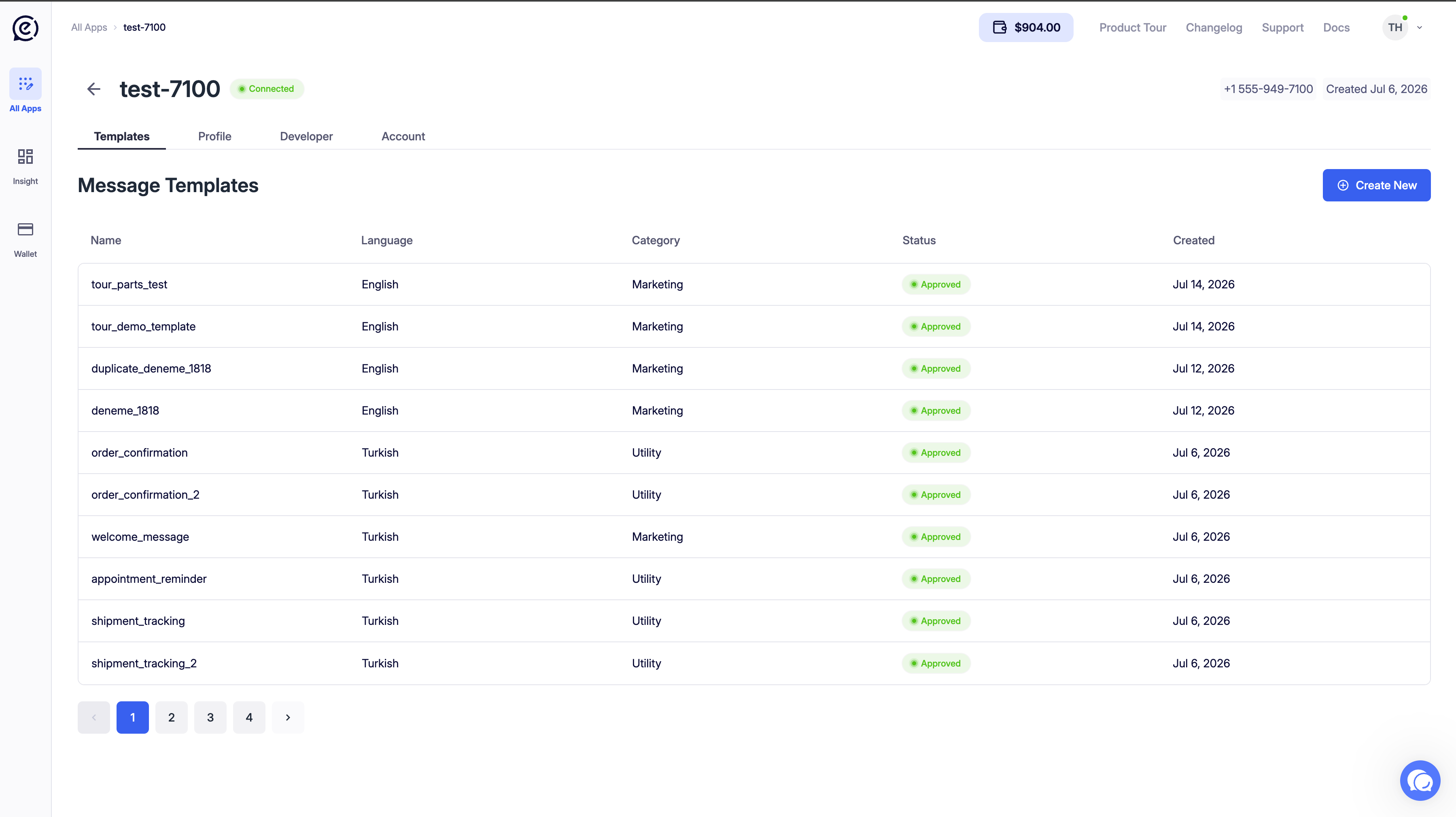
The Templates tab lists all message templates associated with your app and lets you create new ones for submission to Meta for approval. Templates are required to initiate conversations with users outside an active 24-hour window. Access it from the app’s top navigation: Templates. Message Templates List

Template List

Each row in the list represents one message template.
ColumnDescription
Template NameThe internal identifier for the template. Only lowercase letters, numbers, and underscores are allowed.
Template LanguageThe language the template is written in (e.g. English, Turkish).
Template CategoryThe category under which the template was submitted: Marketing, Utility, or Authentication.
Template StatusCurrent approval status from Meta (see below).
Template CreatedThe date the template was submitted.

Template Statuses

StatusDescription
🟢 ApprovedMeta has approved the template. It can be used immediately via API.
🟡 PendingThe template is awaiting review by Meta. This usually takes a few minutes to a few hours.
🔴 RejectedMeta rejected the template. Review Meta’s policies and edit/resubmit.
Templates are paginated. Use the page controls at the bottom to navigate (10 per page by default).

Creating a New Template

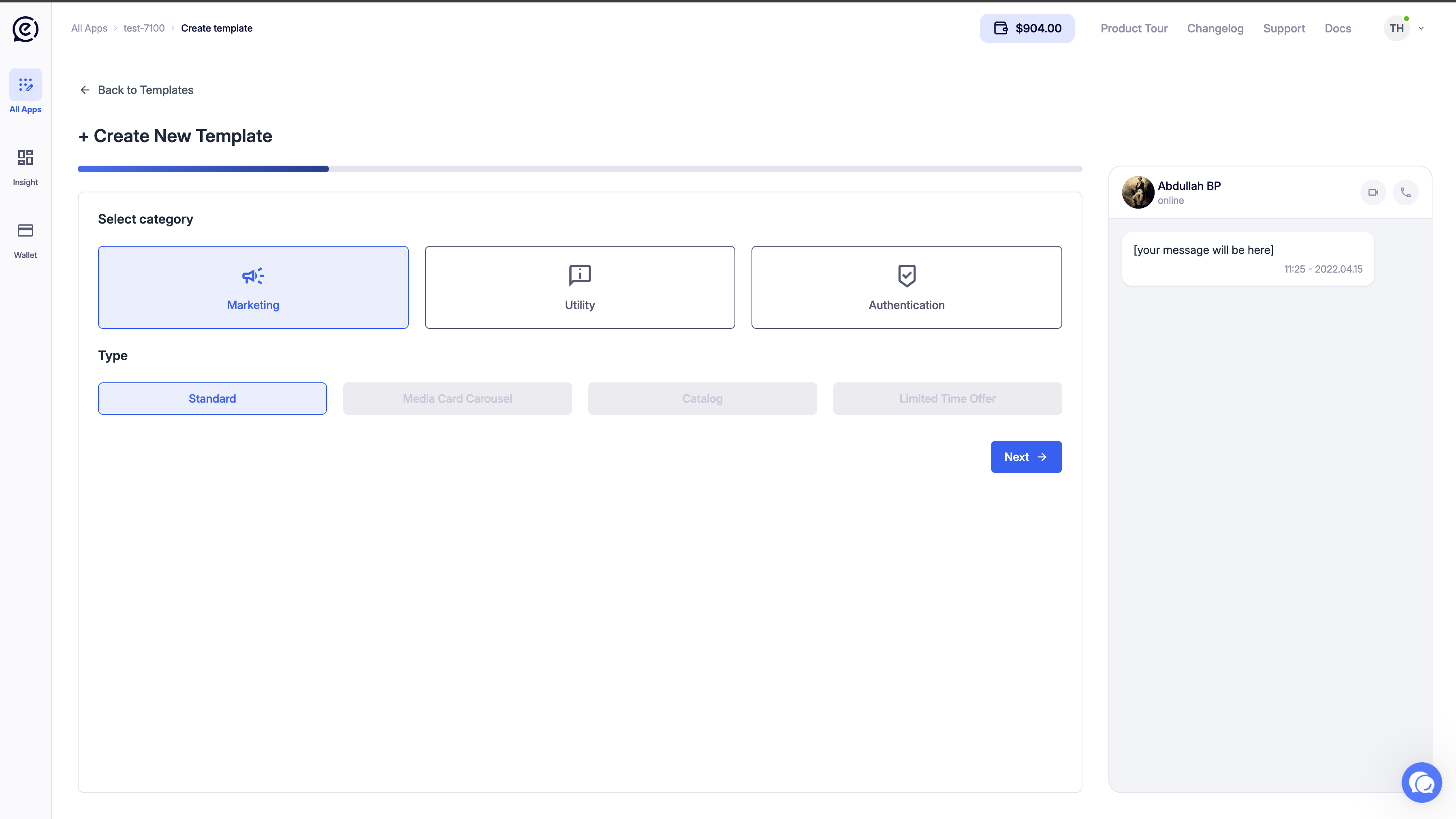
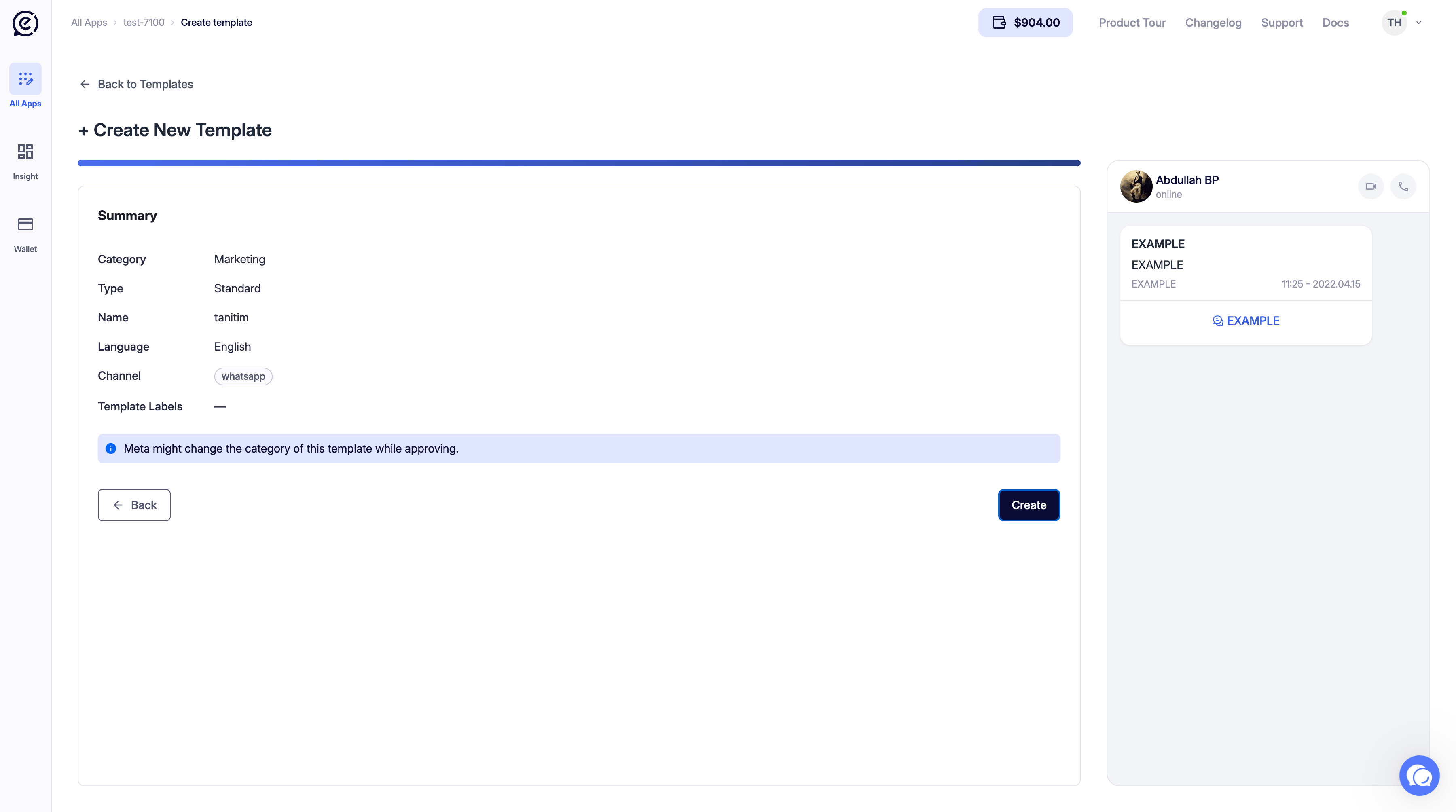
Click + Create New in the top-right corner to open the template builder. Create New Template

1. Select Category

Choose the category that best fits your use case:
CategoryUse Case
MarketingPromotions, announcements, product updates, campaigns.
UtilityOrder confirmations, shipping updates, account alerts, reminders.
AuthenticationOTP codes and verification messages.
Selecting the wrong category can lead to Meta rejection. Sending a promotional message as a Utility template violates Meta’s policies and may result in your template being rejected or your account being flagged.

2. Select Type

TypeDescription
StandardA single message with a header, body, footer, and buttons.
Media Card CarouselA scrollable carousel of media cards (images/videos with buttons).

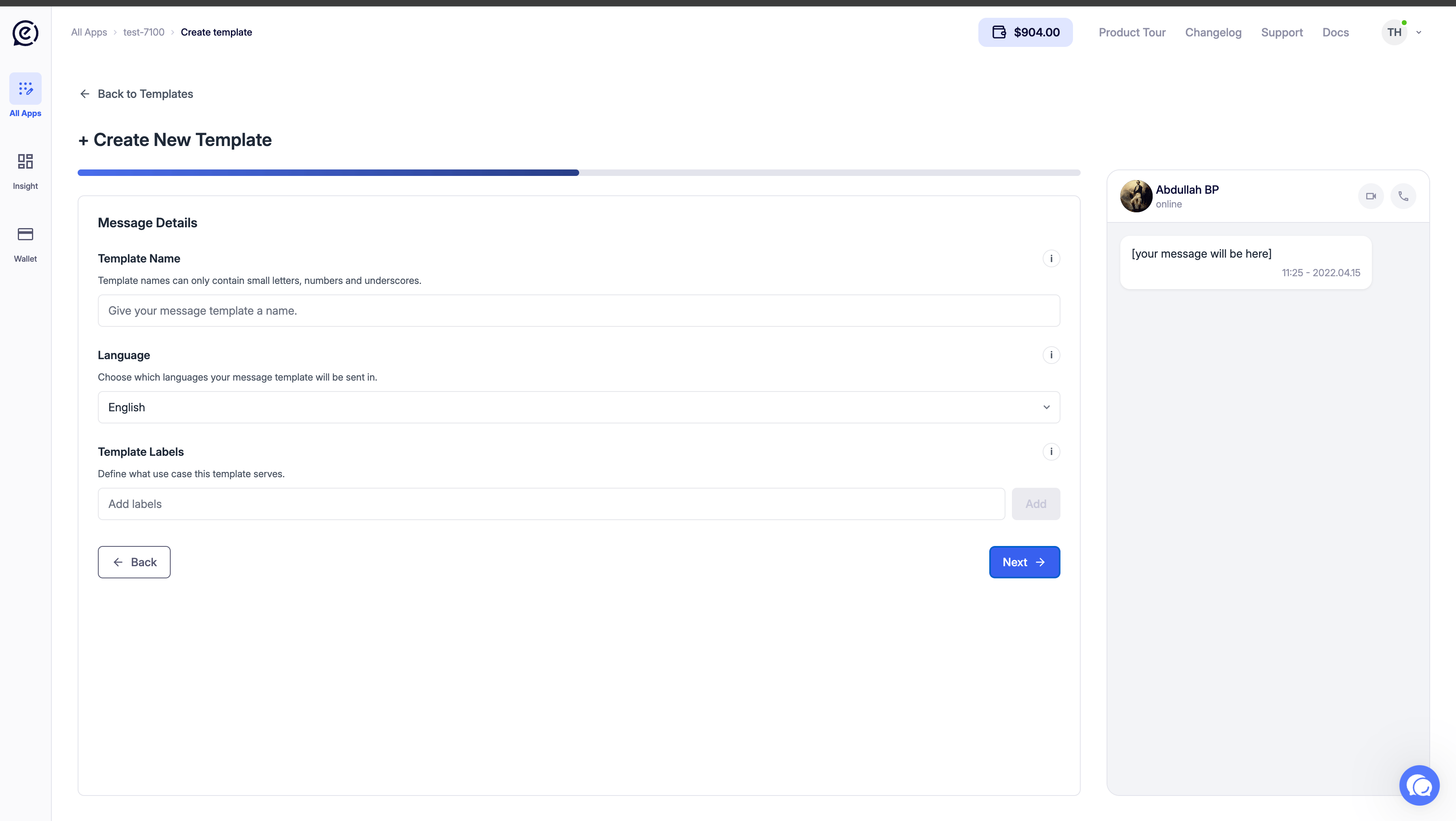
3. Message Details

FieldDescription
Template NameUnique name using only lowercase letters, numbers, and underscores (e.g. order_confirmed).
LanguageThe language of the template content. You can create separate templates for each language.

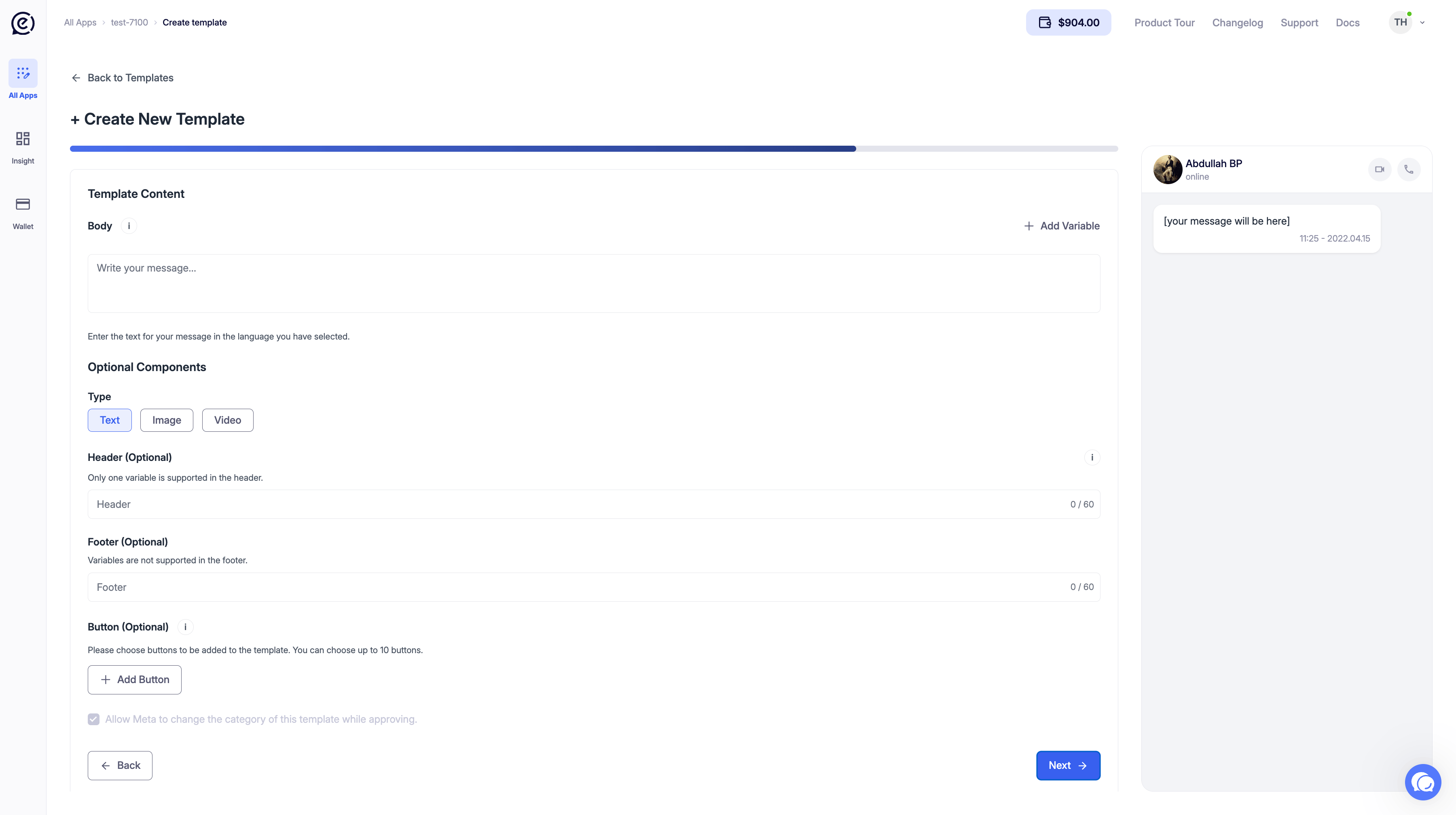
4. Template Content

The Body field is the main message text. It supports:
  • Variables — Click + Add Variable to insert dynamic placeholders like {{1}}, {{2}}, etc. These are replaced with actual values at send time.
  • Bold / Italic / Strikethrough / Monospace formatting using WhatsApp markdown.
A live Preview panel on the right shows how the message will look on a recipient’s device as you type.
Keep template body text clear and relevant. Vague or overly salesy content is more likely to be rejected by Meta. Avoid using all caps or excessive punctuation.
Once a template is submitted, its name and category cannot be changed. If you need to modify these, create a new template with a different name.