
Overview
When you open the Gateway for the first time (or navigate to the sign-up page), the left panel shows the three steps you will complete:Step 1 — Account Setup
Fill in your personal details to create your account credentials.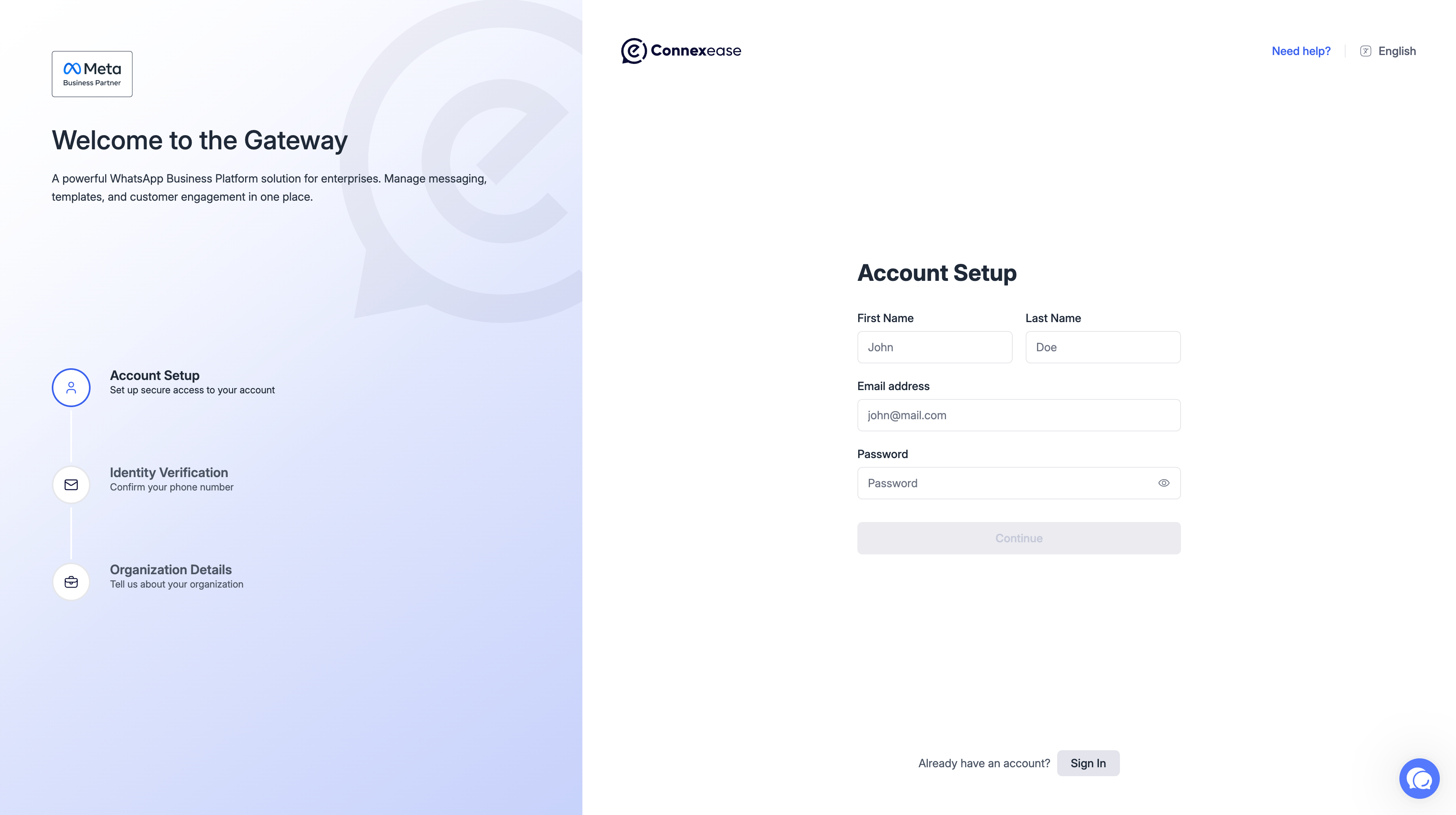
Click Continue to proceed to the next step.
If you already have an account, click Sign In at the bottom of the page.
Step 2 — Identity Verification
Your phone number is verified via WhatsApp for two-factor authentication (2FA).Send Code
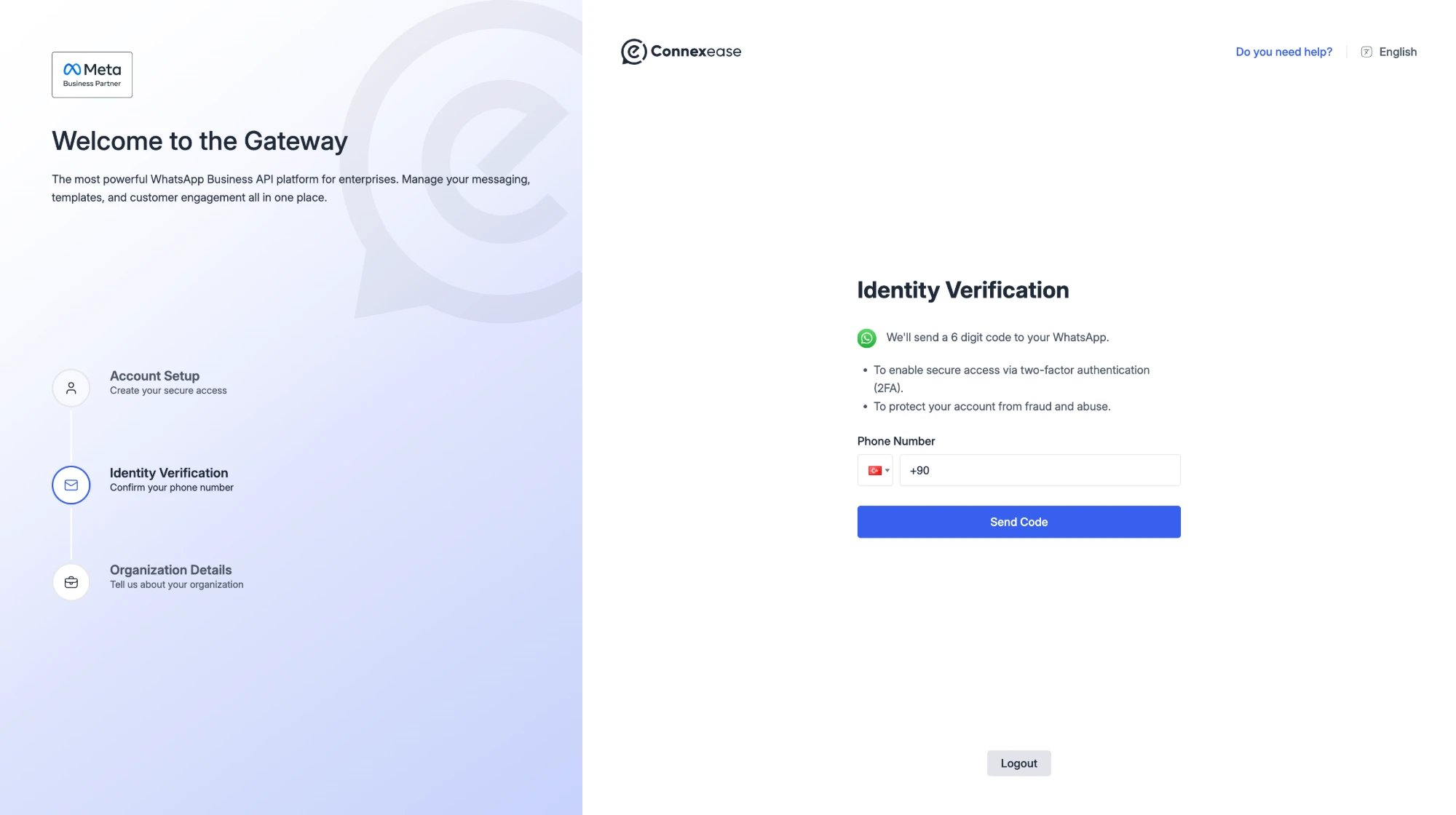
- Select your country code from the flag dropdown.
- Enter your WhatsApp phone number.
- Click Send Code. A 6-digit verification code will be sent to your WhatsApp.
Enter Code
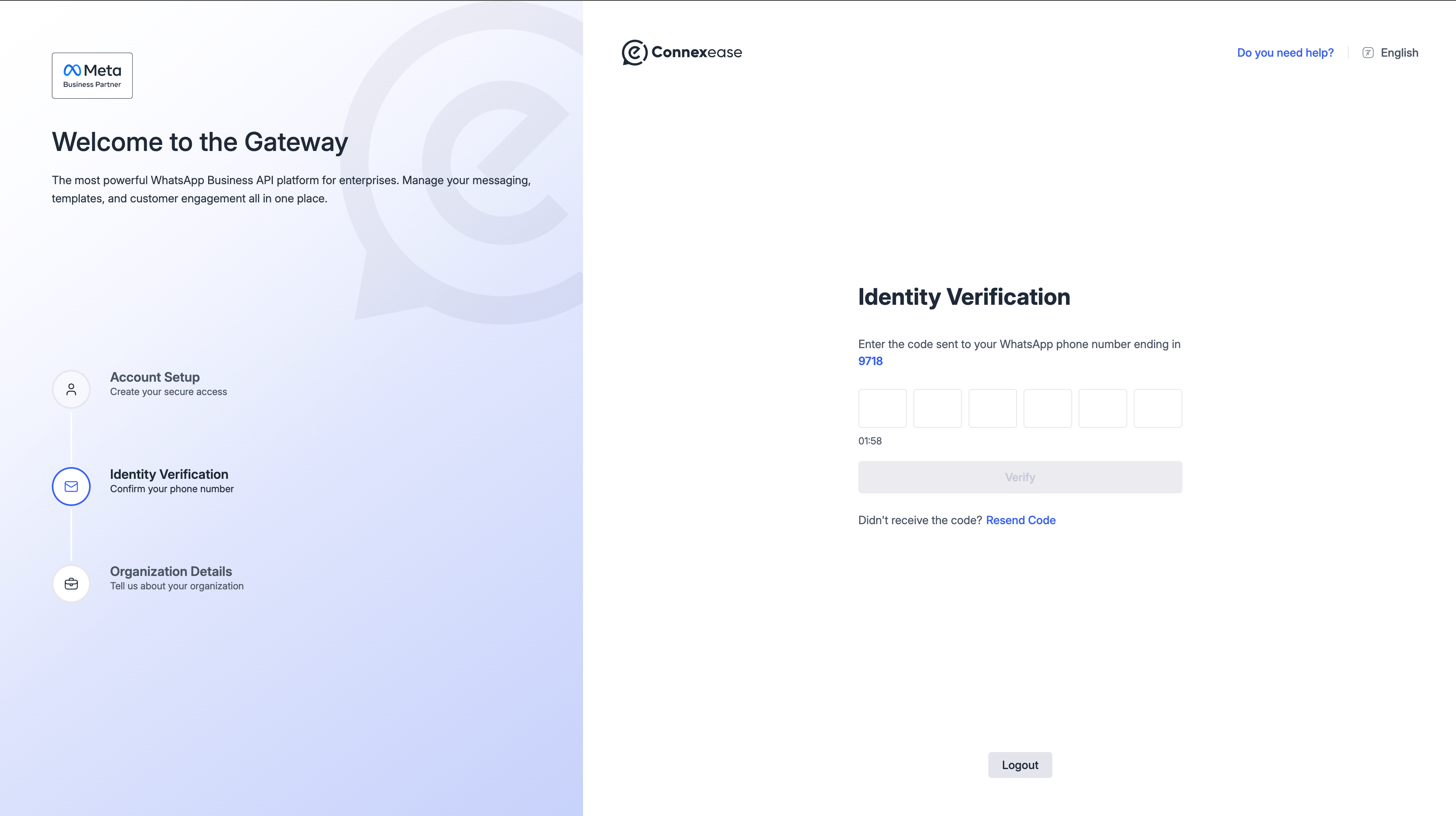
- Enter the 6-digit code sent to your WhatsApp number ending in the last 4 digits shown on screen.
- A countdown timer (e.g.
01:58) shows how long the code remains valid. - Click Verify to confirm.
- If you did not receive the code, click Resend Code.
Step 3 — Organization Details
Provide information about your organization to complete the setup.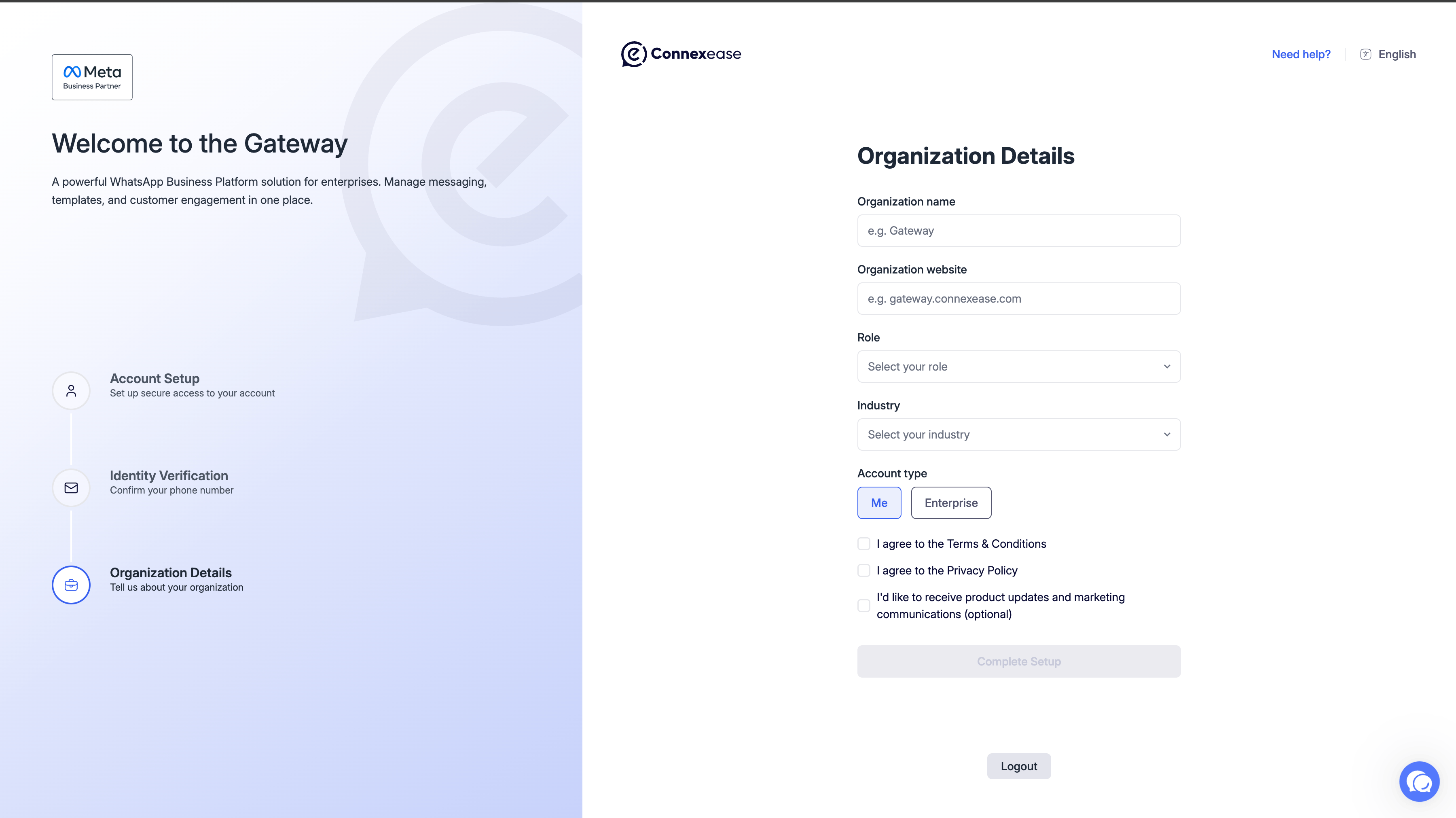
Role Options
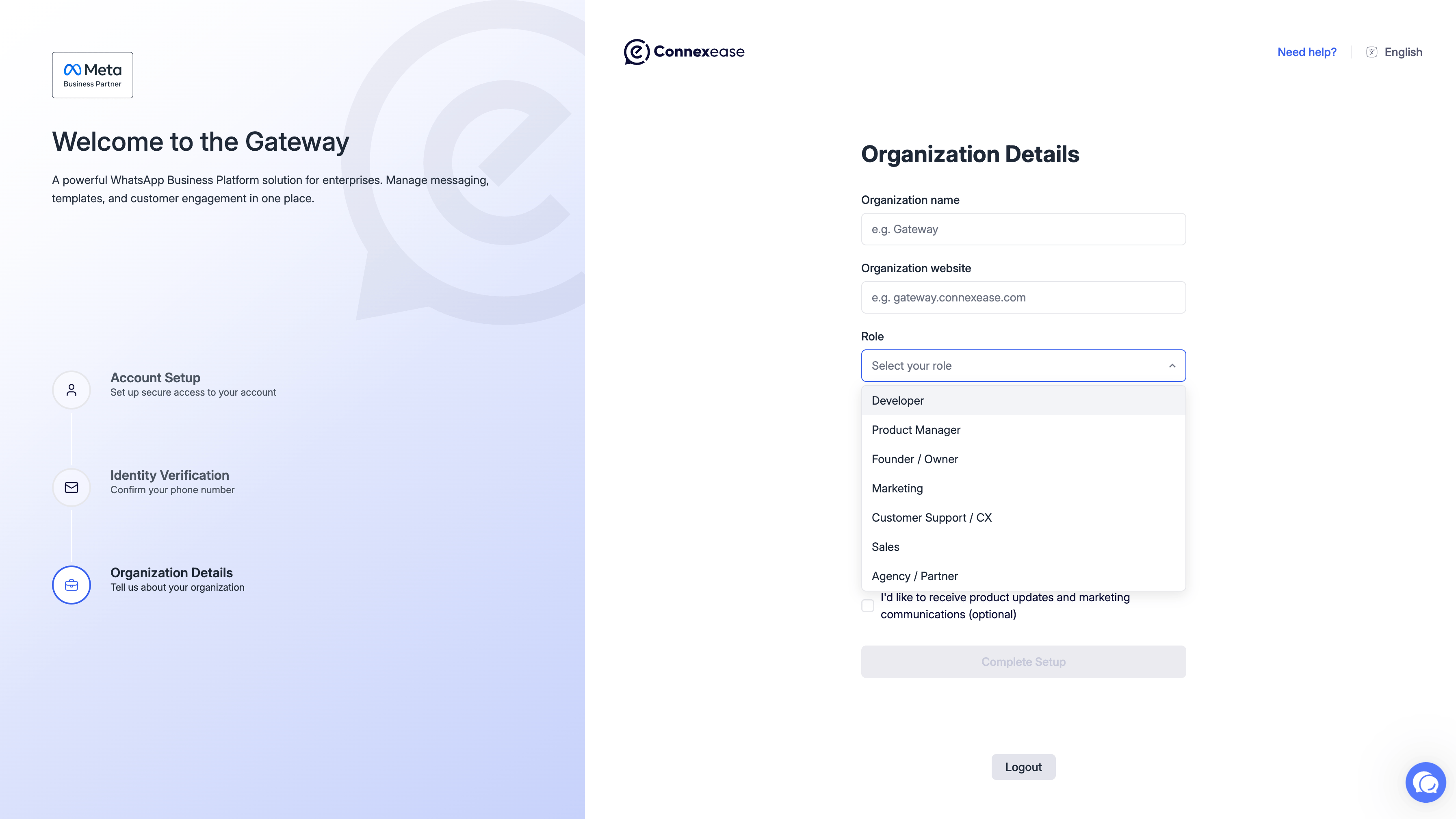
Industry Options
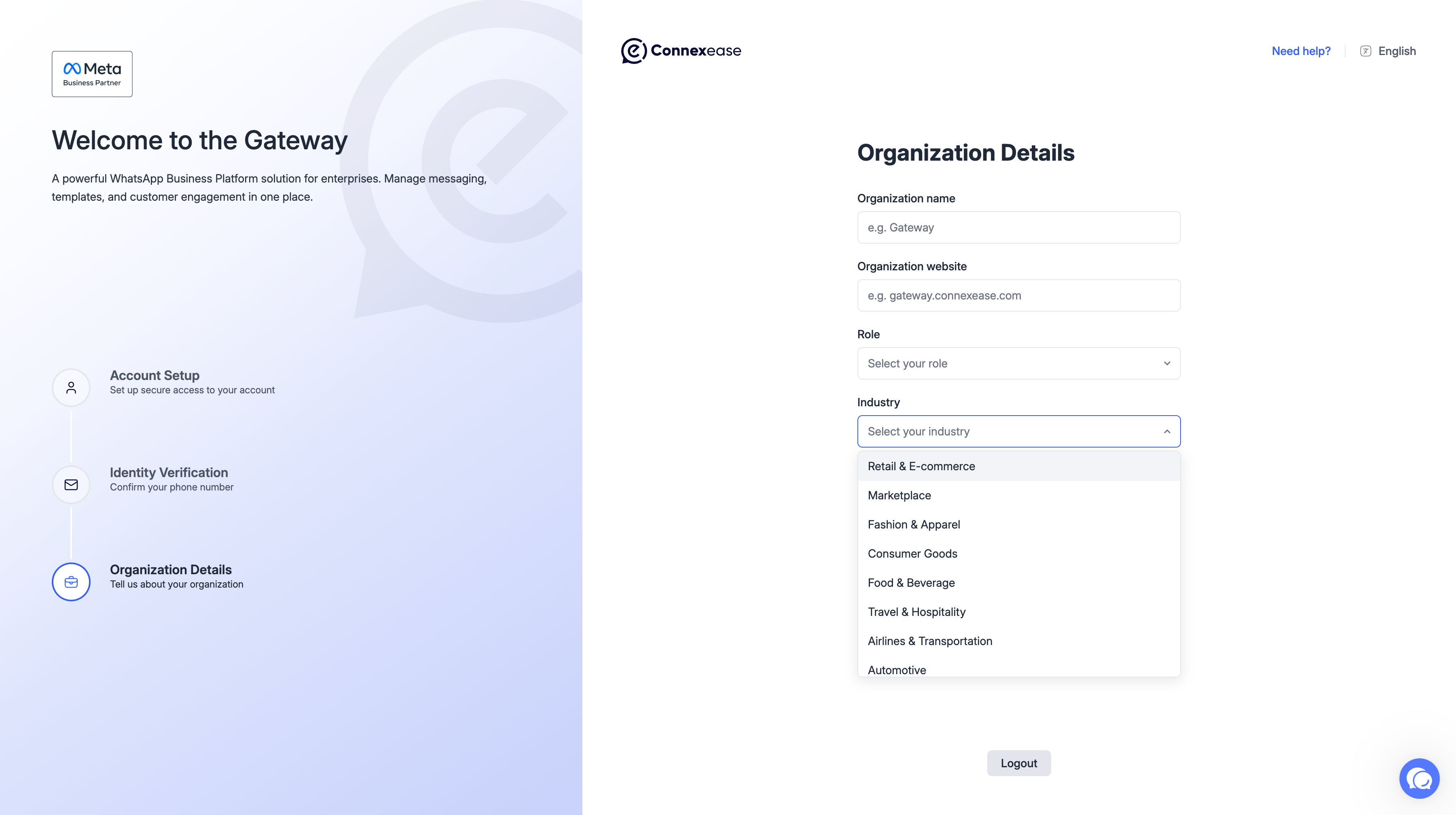
Includes sectors such as: Retail & E-commerce, Marketplace, Fashion & Apparel, Consumer Goods, Food & Beverage, Travel & Hospitality, Airlines & Transportation, Automotive, and more.
Terms & Agreements
Before completing setup, you must accept the following:
Click Complete Setup to finish registration.
Use the Logout button at the bottom of the page if you need to exit and continue later.