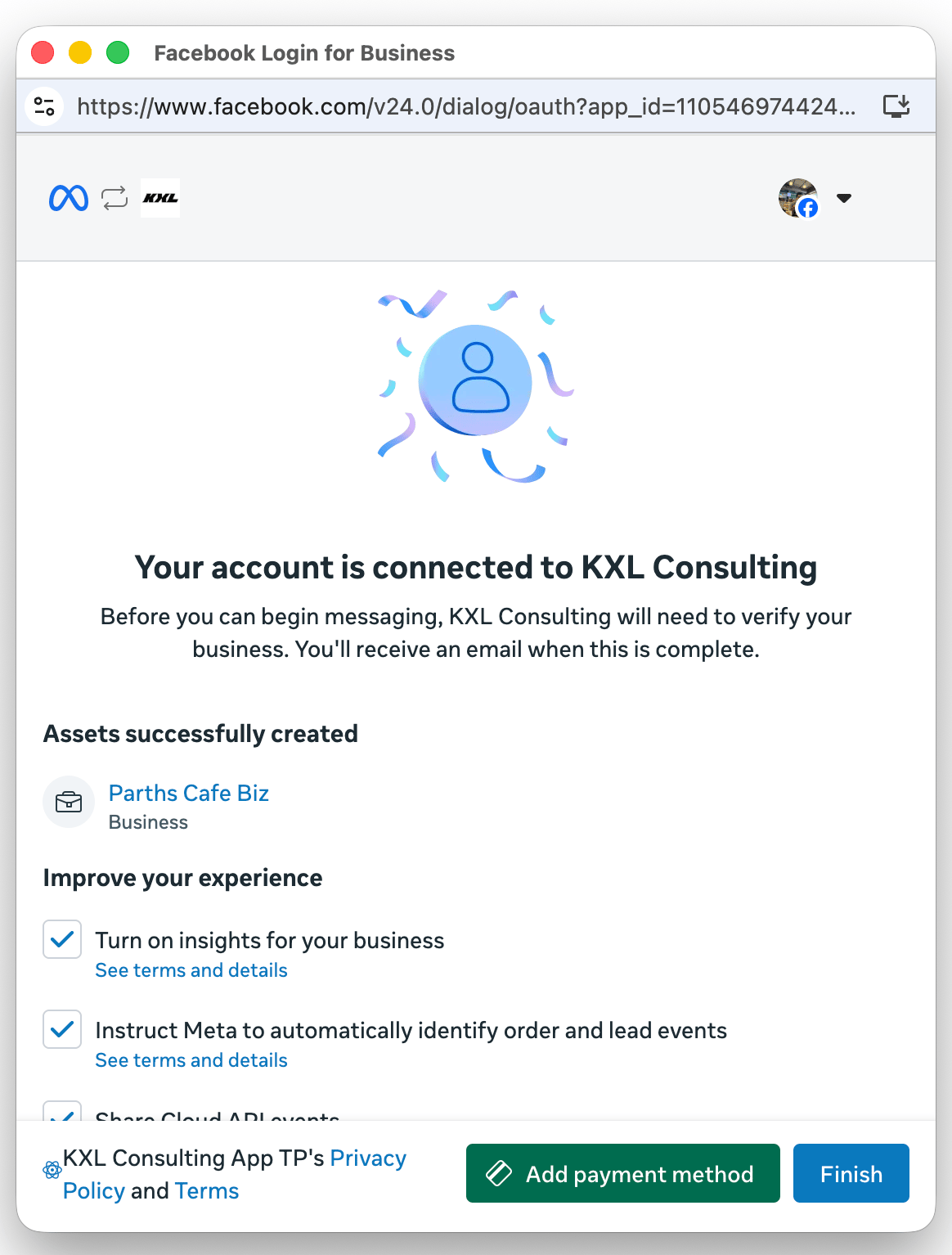
Authorization screen
This screen describes the data the business customer will be permitting your app to access.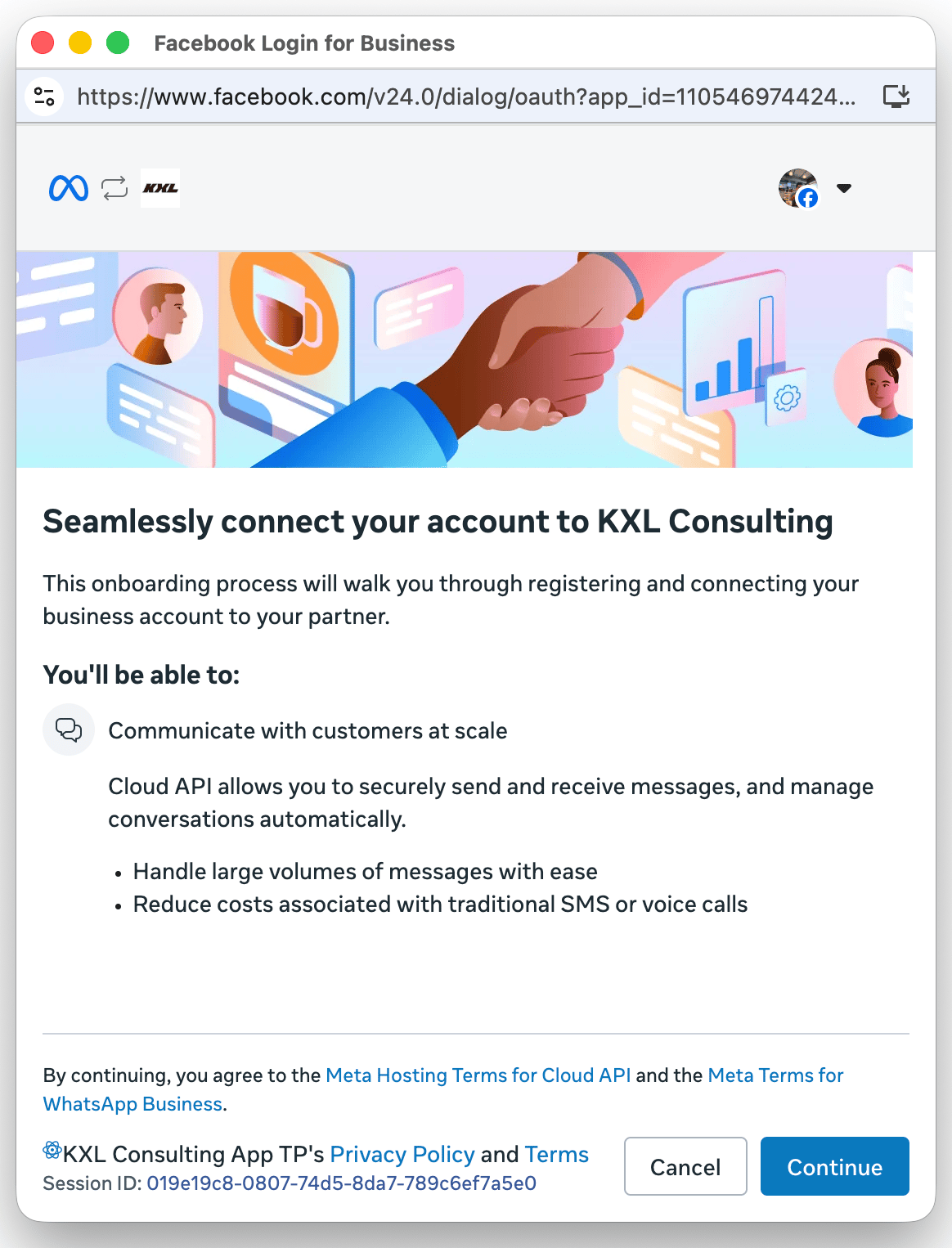
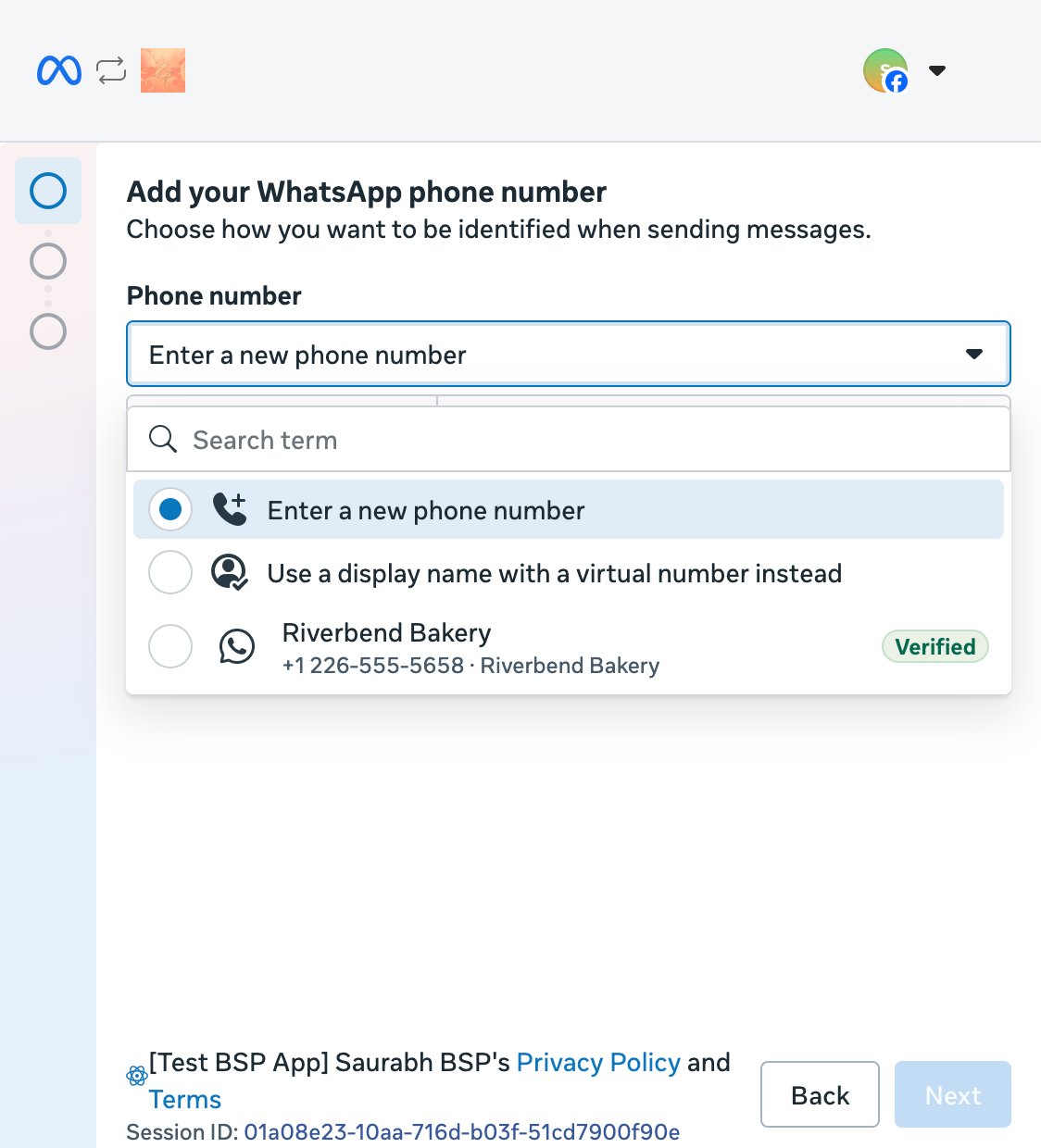
Phone number entry screen
This screen lets the business customer enter a new business phone number, or select an existing phone number from the dropdown, to associate with their WhatsApp Business Account. In this flow, the phone number is the first piece of information collected, before any asset selection.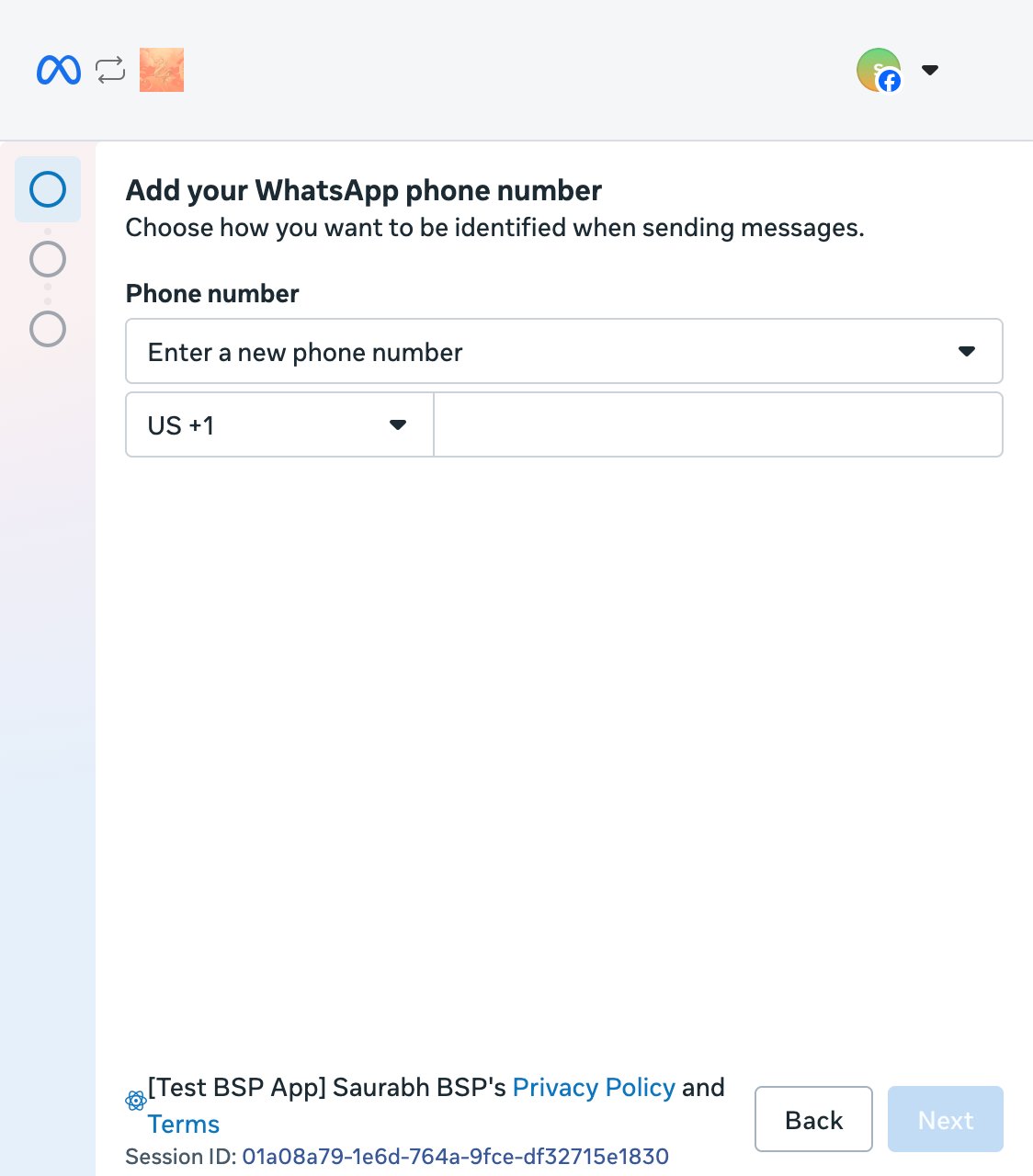
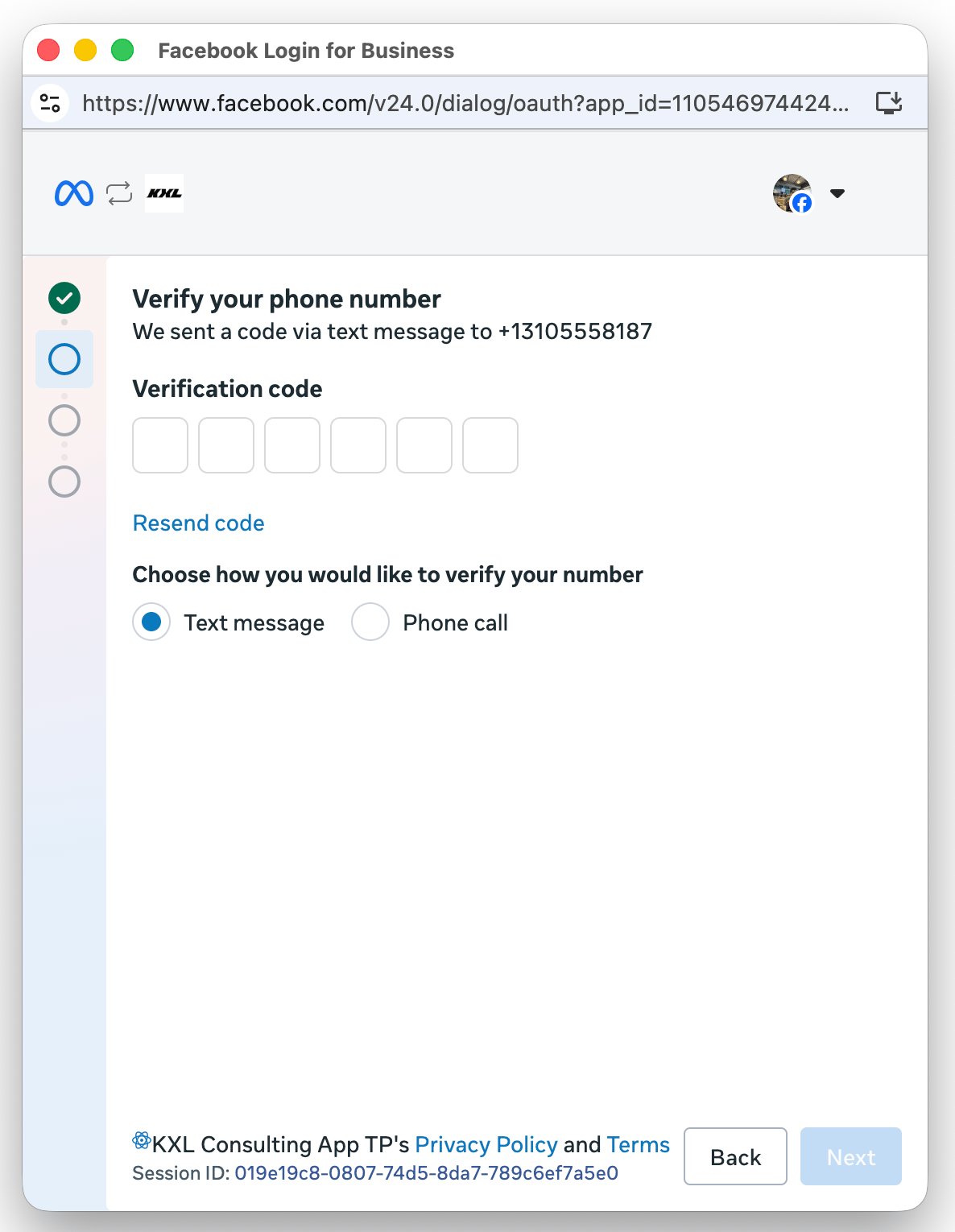
Phone number verification screen
This screen lets the business customer verify ownership of the phone number entered in the previous step. The customer can choose to receive the verification code via SMS or voice call from this screen, then submit the code to complete verification.If you are providing phone numbers to your customers, you will have to deliver these codes, or provide pre-verified numbers instead.
Business asset selection screen
This screen lets the business customer select existing business assets, such as a Meta business portfolio and WhatsApp Business Account, to use with the new phone number. Customers can also create new assets if they have not reached their portfolio limit.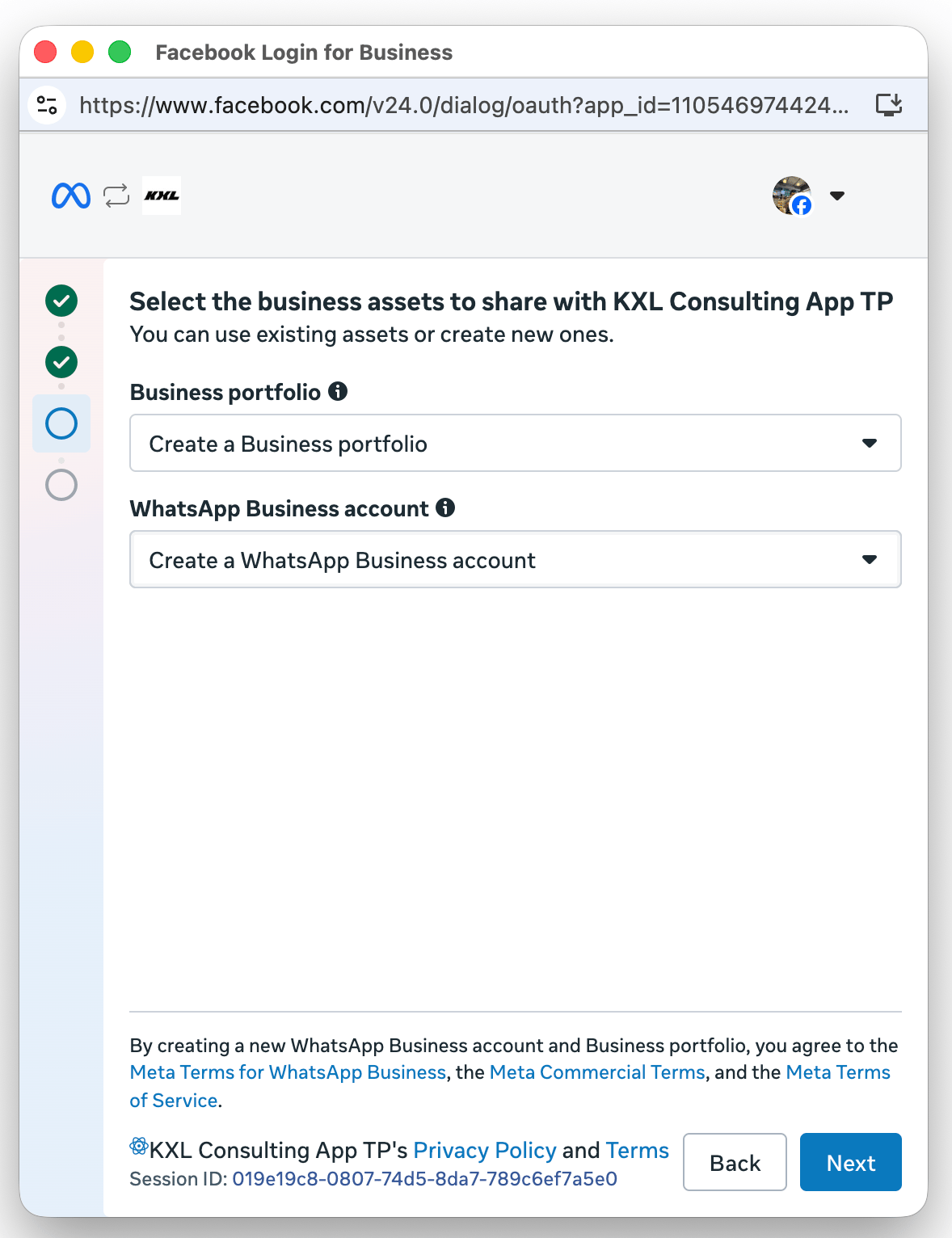
New business creation screen
This screen lets the business customer create a new business portfolio or WhatsApp Business Account if no suitable existing asset is available.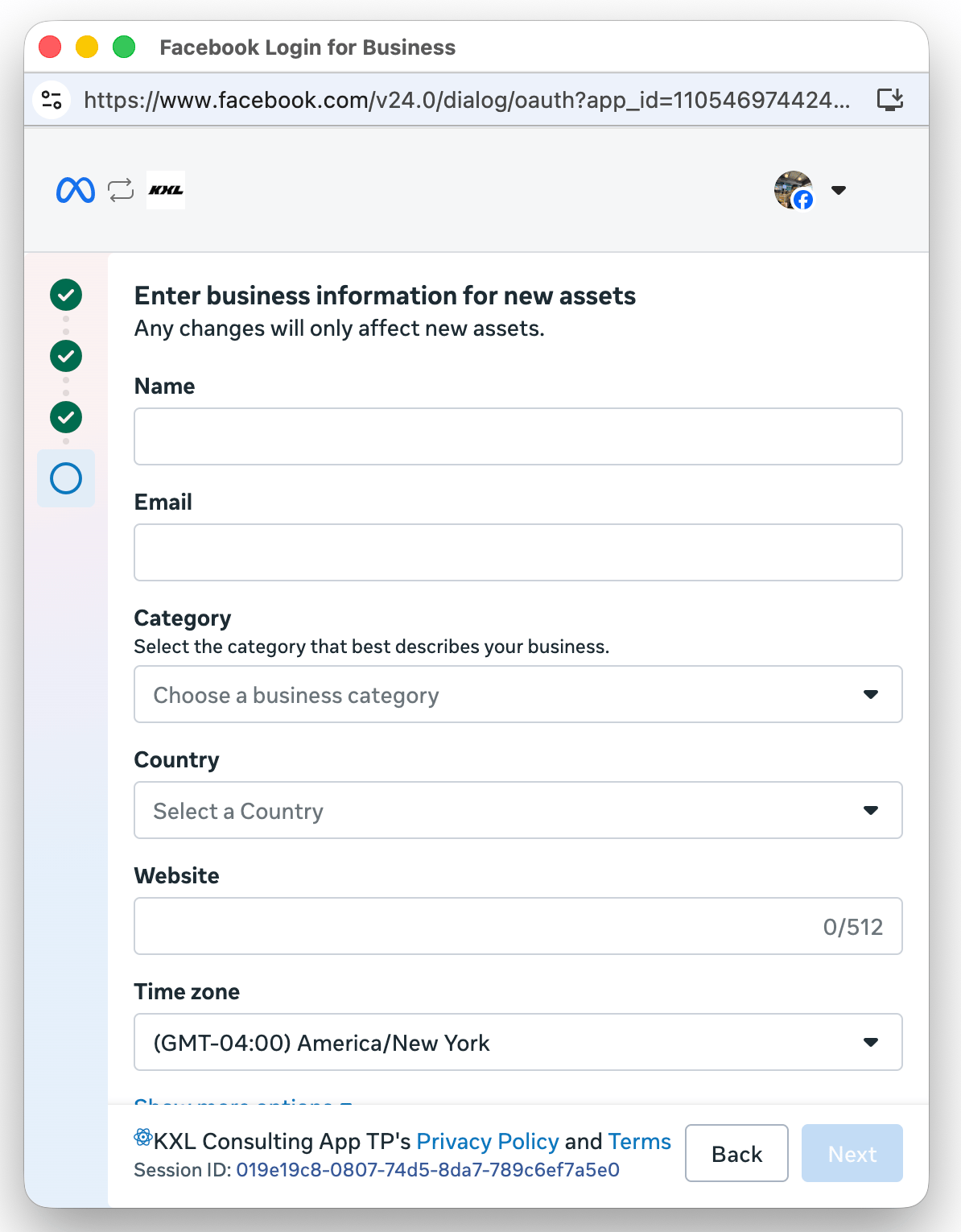
Permissions review screen
This screen provides a summary of the permissions the business customer is granting to your app.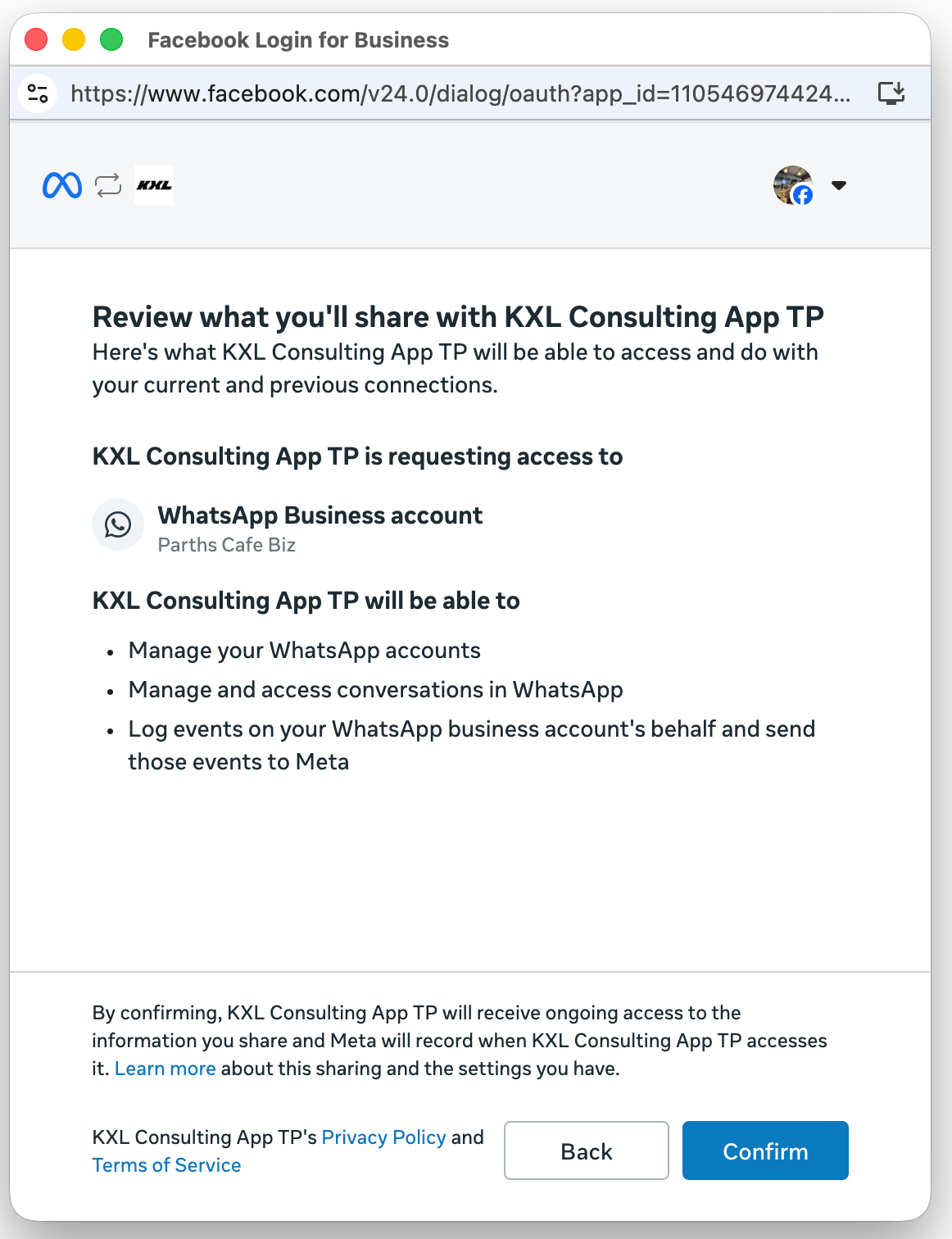
Success screen
This screen indicates that all of the business customer’s assets (business portfolio, WhatsApp Business Account, phone number display profile, and business phone number) were successfully created and associated. When the customer clicks Finish, a message event is triggered containing the customer’s WhatsApp Business Account ID and business phone number ID, which you must use to onboard the customer to the platform.